Create and Onboard Employees
Last updated: August 3, 2026
Overview
Before you can pay an employee, they must be added to your company and complete onboarding.
You can create employees individually or import them in bulk. Once an employee has been added, you’ll send them an onboarding invitation to securely collect the information needed for payroll, such as tax forms, bank account information, and employment documents.
Before You Begin
Before creating employees, make sure you’ve:
Completed Company Onboarding
Created at least one Work Location
Configured your employee onboarding requirements
Option 1: Create an Employee
To create an employee individually:
Navigate to People.
Select Add Employee.
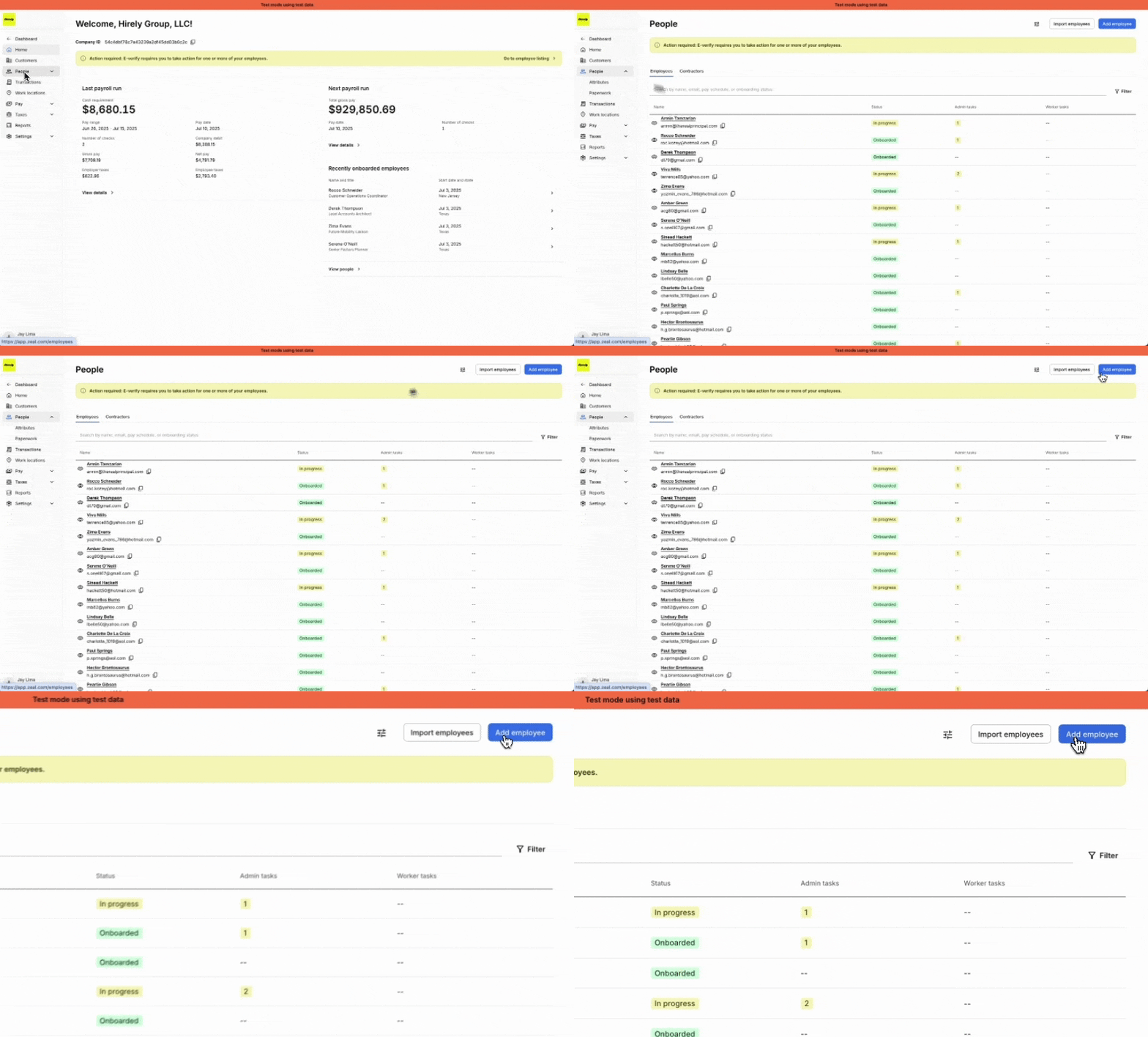
Enter the employee’s basic information, including:
First name
Last name
Email address
Default work location
Employment settings
Pay settings (if applicable)
Select Create Employee.

Option 2: Import Employees
If you’re onboarding multiple employees, you can import them using a CSV file.
Navigate to People.
Select Import Employees.
Upload your completed CSV.
Review any validation errors.
Complete the import.
Zeal validates your file before importing and identifies any missing or invalid information that needs to be corrected.
Send an Onboarding Invitation
After creating an employee, send them an onboarding invitation.
From the People page or the employee’s profile:
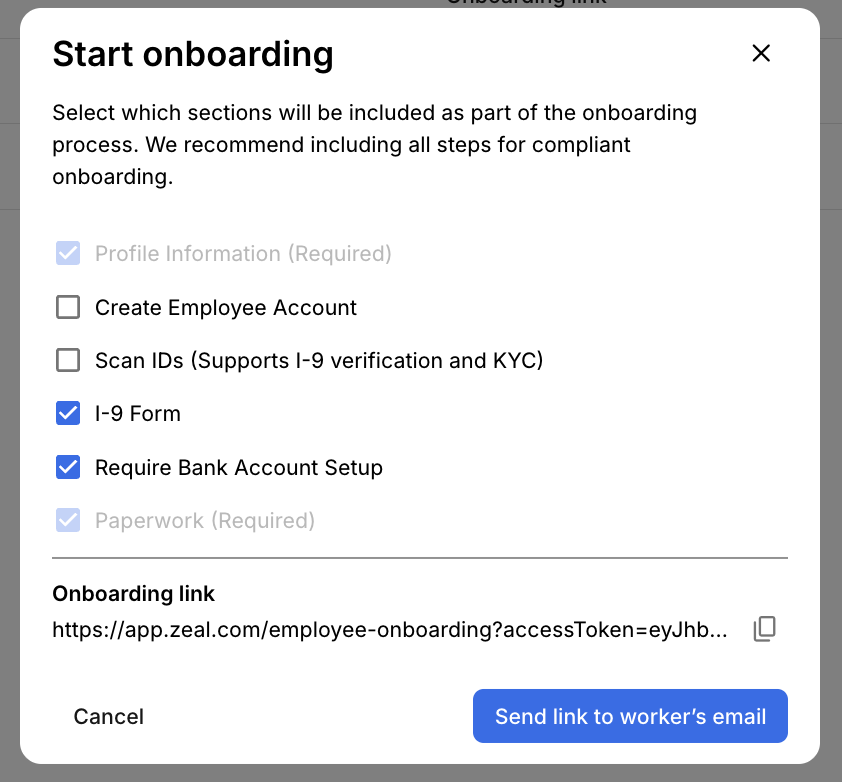
Select Onboarding Link.
Choose whether to:
Copy the onboarding link, or
Email it directly to the employee.
Employees can complete onboarding from:
Desktop browser
Mobile browser
Your white-labeled mobile app (if enabled)
Track Onboarding Progress
You can monitor onboarding progress from the People page.
Each employee displays an onboarding status, making it easy to see who has completed onboarding and who still has outstanding tasks.
If an employee hasn’t completed onboarding, you can resend their invitation or generate a new onboarding link.
Review Employee Information
Before including an employee in payroll, review their profile to confirm they’ve completed the required onboarding steps.
From the employee profile you can review:
Profile Information
Employment Settings
Payment Settings
Tax Forms
Bank Information
Documents
Paperwork
If an employee needs to update only one section after onboarding, you can send them a Shareable Link instead of asking them to complete the full onboarding flow again.
Bulk Actions
The People page also allows you to efficiently manage multiple employees by:
Searching and filtering employees
Viewing onboarding status
Importing employees in bulk
Sending onboarding invitations
Opening employee profiles
Next Step
Once your employees have completed onboarding, you’re ready to process payroll.
Zeal is a financial technology company, not an FDIC insured depository institution. Banking services provided by Bangor Savings Bank, Member FDIC. FDIC insurance coverage protects against the failure of an FDIC insured depository institution. Pass-through FDIC insurance coverage is subject to certain conditions.
Mastercard® Debit Card is issued by Bangor Savings Bank, Member FDIC, pursuant to license by Mastercard International Incorporated. Mastercard is a registered trademark, and the circle design is a trademark of Mastercard International Incorporated. Spend anywhere Mastercard is accepted.