Pending Checks Page
Last updated: August 3, 2026
Zeal's Pending Checks Page allows you to view, preview, edit, and approve employee checks (created through the📄 Run Payrollfeature or the API) before they are processed.
Developer note: If you’re building a custom payroll experience with Zeal’s APIs, the Pending Checks page is part of the check development workflow. Applications can create draft checks through the API, review and update them as needed, and then approve them for processing through the Zeal platform. This allows developers to build payroll logic in their own application while using Zeal to validate and finalize payroll before funds are disbursed.
Editing an employee check
From the Pending table
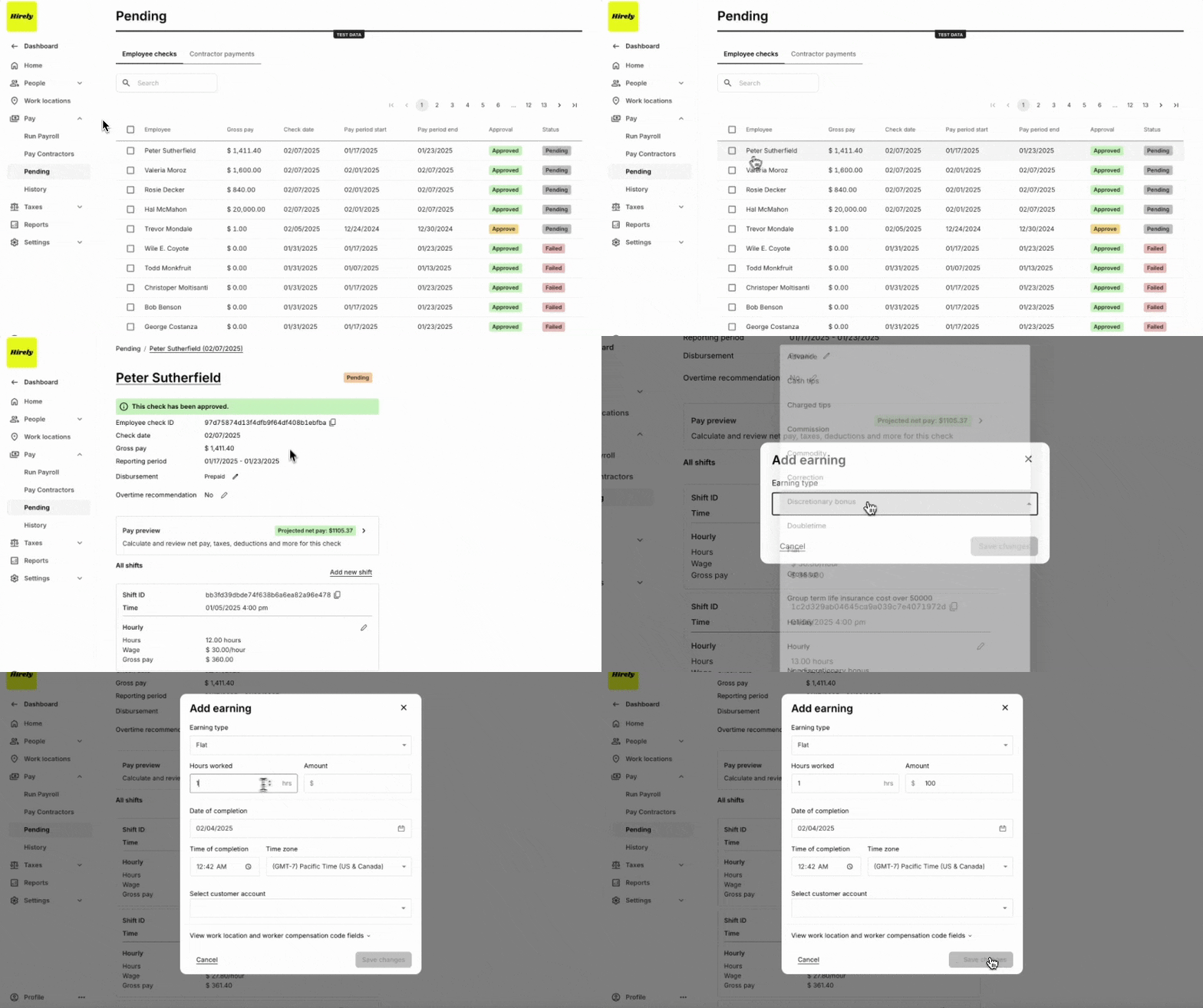
Click on any row in the Pending Checks Table to open the detailed check view.
From this page, you can:
Edit disbursement details.
Modify shifts, hours worked, and deductions.
View projected net pay.
Delete the check if necessary.
Click Done Editing to save changes.
Multi-edit
Selecting Checks for Review
Use the checkboxes to select individual or multiple pending checks.
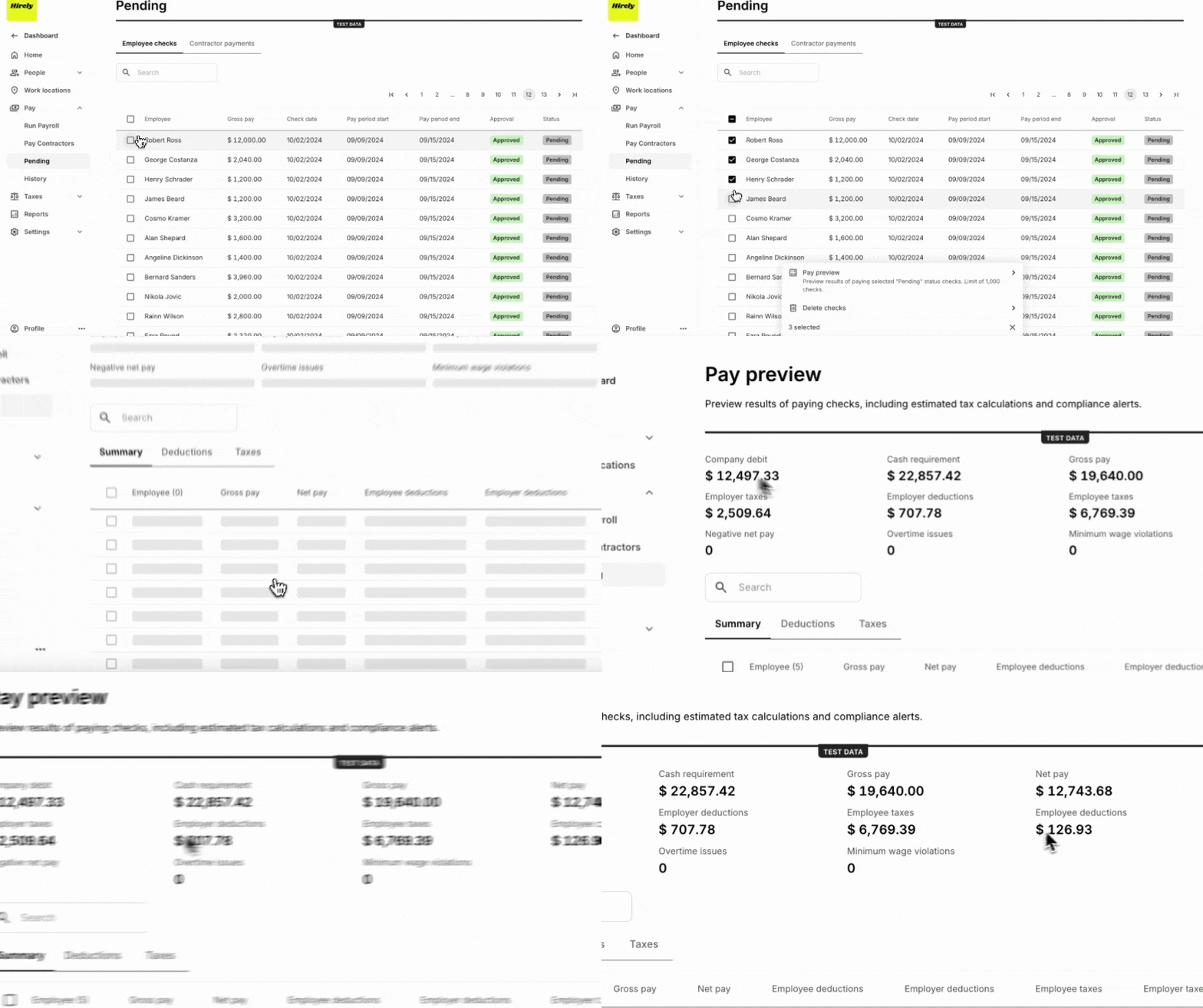
Click the Pay Preview button to view payroll impact.
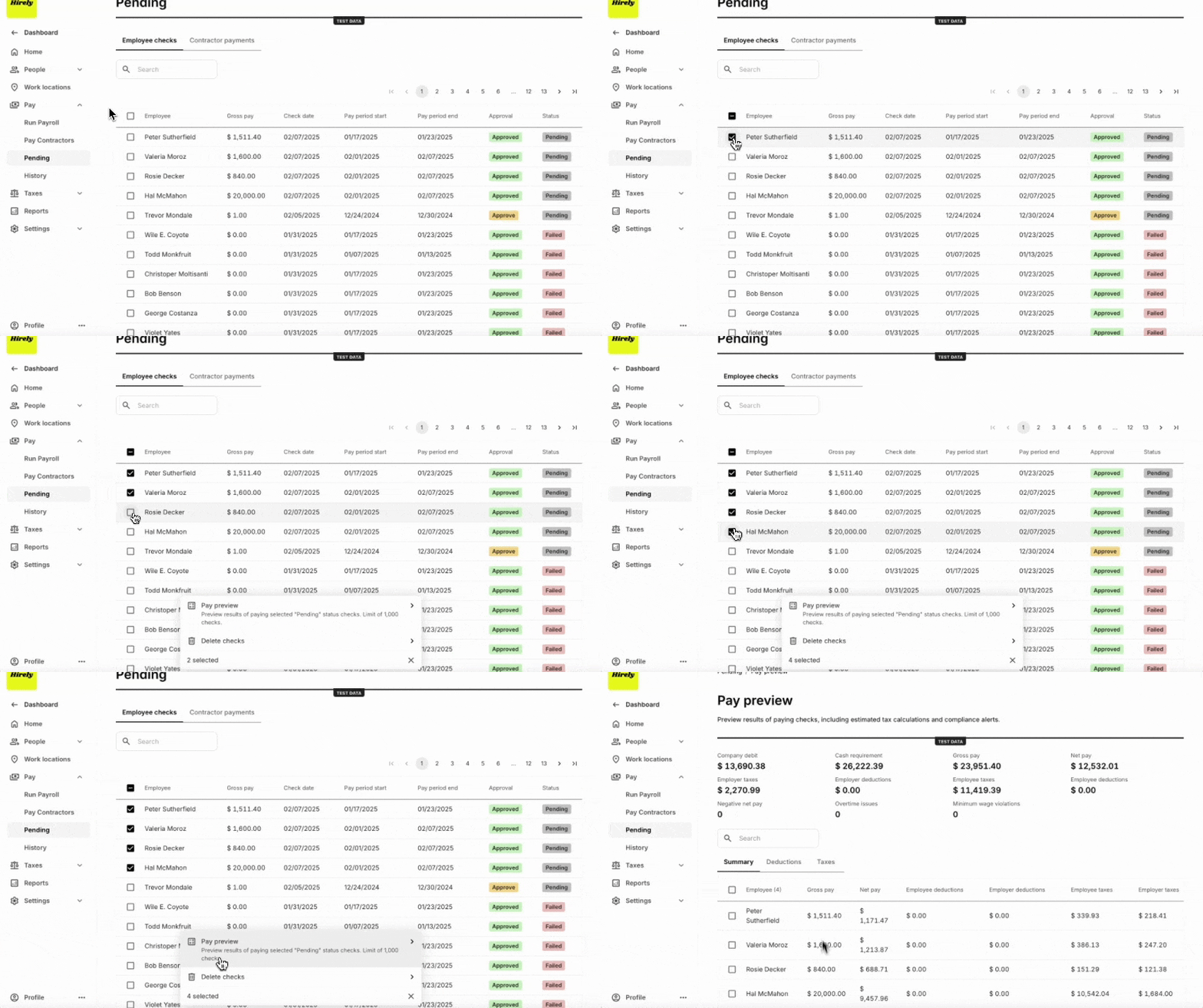
Editing Pending Checks
From Pay Preview, use the checkboxes to select individual or multiple pending checks
Select Edit Checks to modify check details.
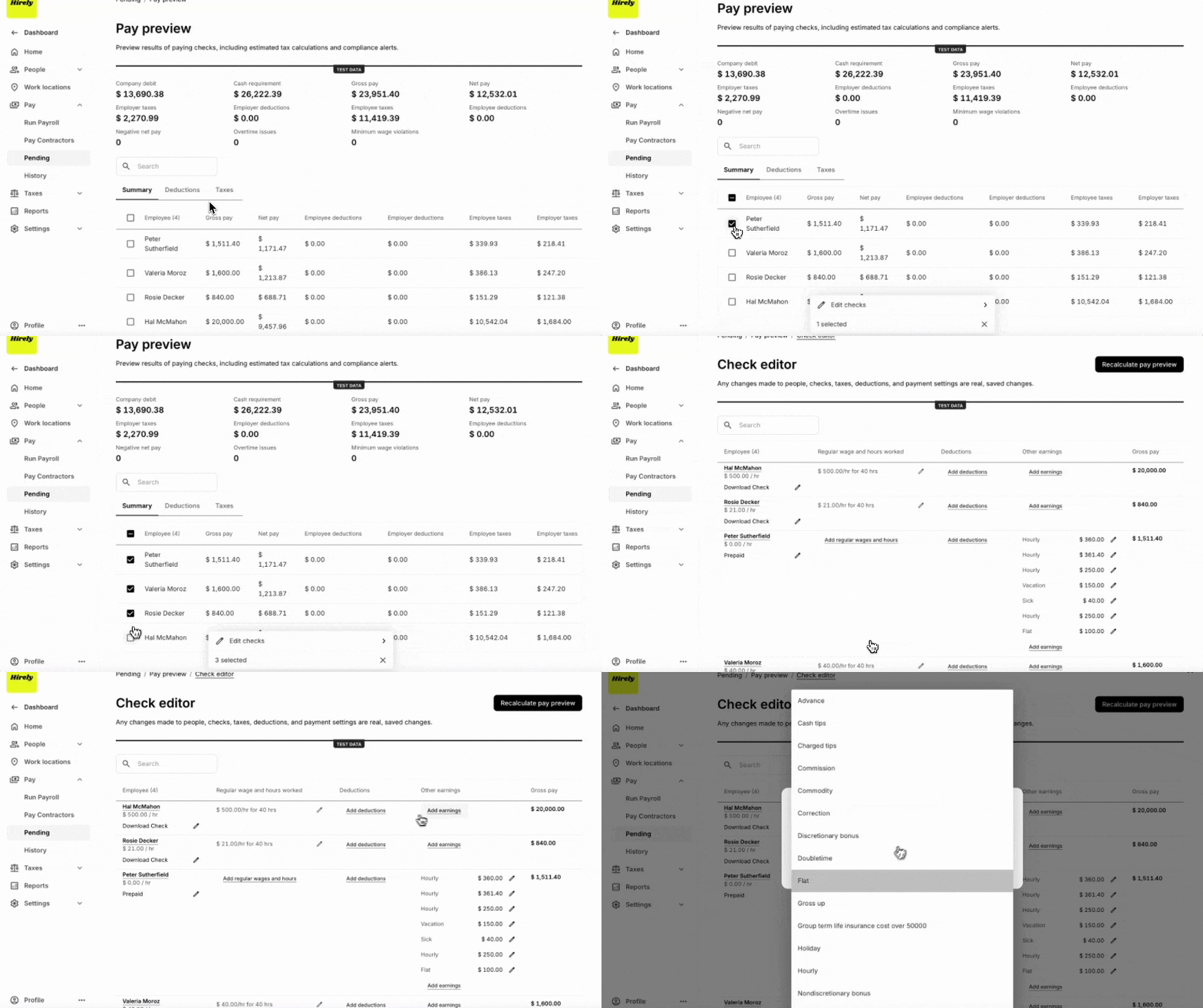
Adjust:
Wages & Hours Worked
Deductions (e.g., benefits, withholdings)
Click Recalculate Pay Preview to see updated payroll totals.
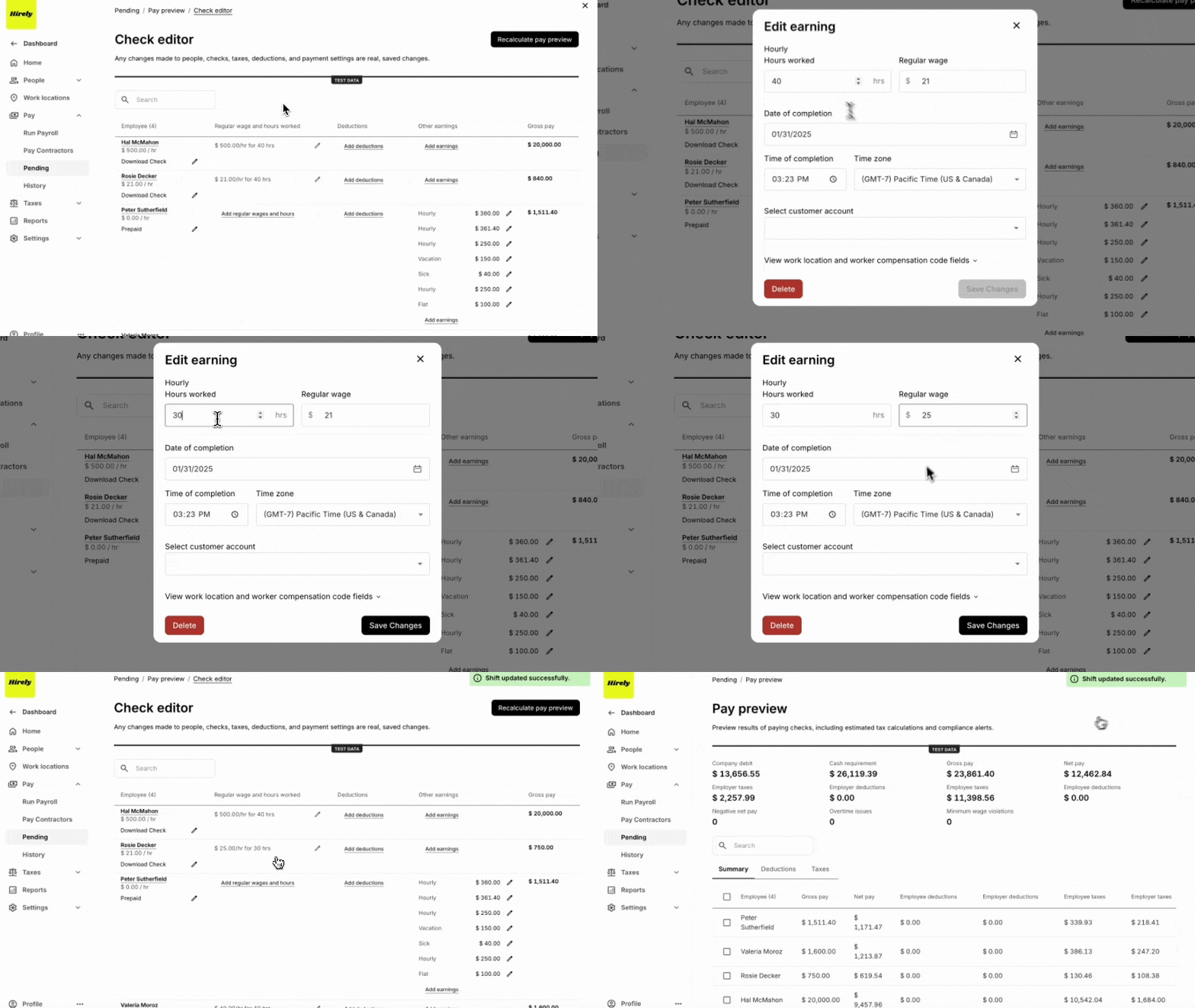
Preview Checks
Select Checks for Review
Use the checkboxes to select individual or multiple pending checks.
Click the Pay Preview button to view payroll impact.
Using Pay Preview
The Pay Preview Page provides:
Company Debit – Total payroll cost.
Cash Requirement – Funds needed for payroll.
Employee and Employer Taxes – Breakdown of tax deductions.
Detailed Payroll Breakdown – View each selected employee’s net pay, deductions, and tax details.
Deleting Checks
Deleting individual employee check
Click on a check row in the Pending Checks Table to open the Check Editor.
Scroll down and click the Delete Check button.
Confirm the deletion in the prompt.
Multi-delete
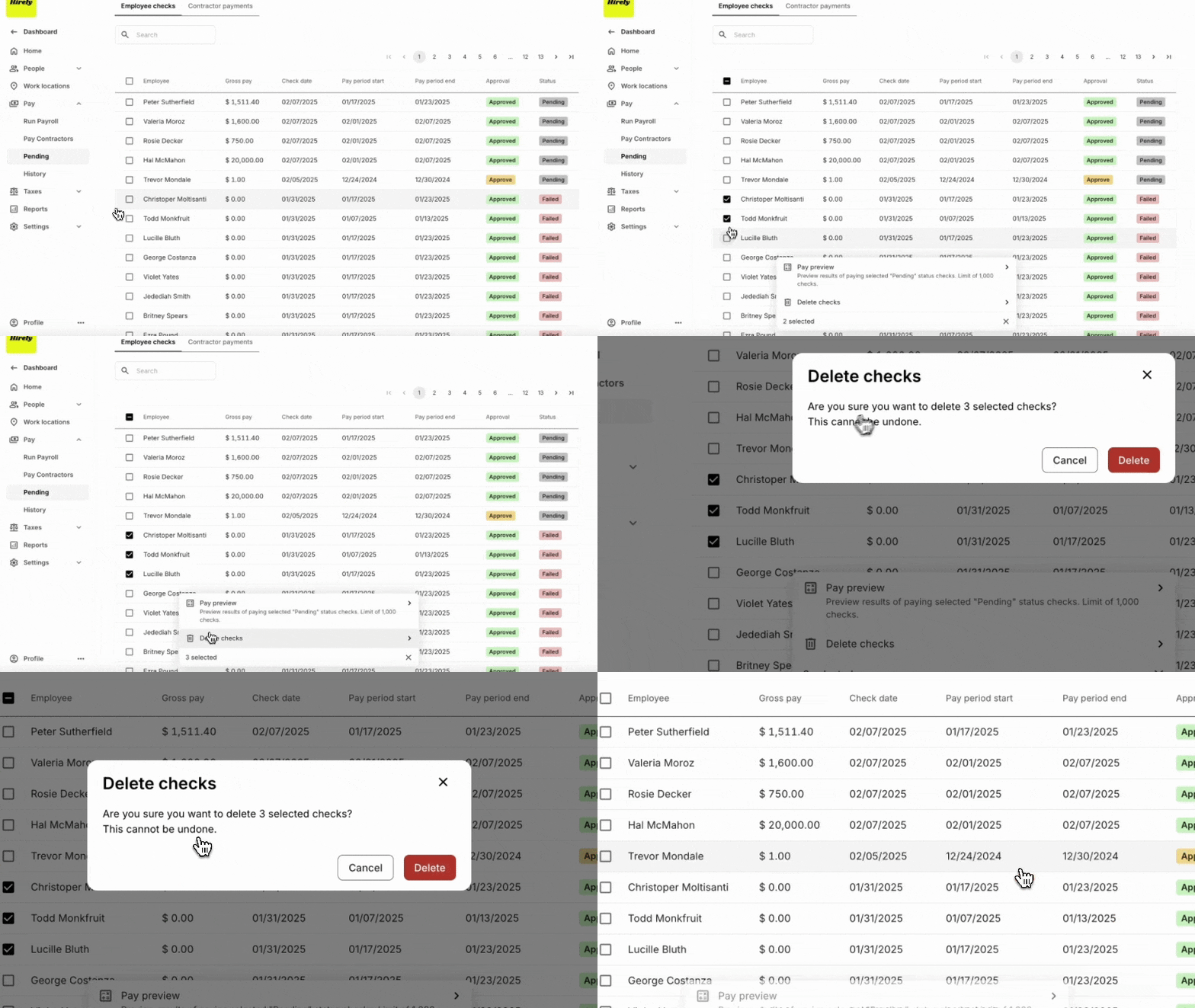
Use the checkboxes to select one or more checks.
A toolbar will appear at the bottom of the screen with available actions.
Click on “Delete Checks”
In the toolbar, click on the Delete Checks option.
Confirm the deletion in the pop-up prompt.
Confirm Deletion
Once deleted, the checks will be permanently removed from the pending list. If a check needs to be re-added, it must be recreated.
Zeal is a financial technology company, not an FDIC insured depository institution. Banking services provided by Bangor Savings Bank, Member FDIC. FDIC insurance coverage protects against the failure of an FDIC insured depository institution. Pass-through FDIC insurance coverage is subject to certain conditions.
Mastercard® Debit Card is issued by Bangor Savings Bank, Member FDIC, pursuant to license by Mastercard International Incorporated. Mastercard is a registered trademark, and the circle design is a trademark of Mastercard International Incorporated. Spend anywhere Mastercard is accepted.