Run Payroll
Last updated: August 3, 2026
Overview
Once your employees have completed 📄 Create and Onboard Employees you’re ready to run payroll.
Zeal allows you to create regular or off-cycle payrolls, review payroll before processing, make changes to employee checks, and submit payroll for processing.
This guide walks through the standard payroll workflow in the Zeal Dashboard.
Before You Begin
Before running payroll, make sure you’ve:
📄 Create and Onboard Employees
Confirmed employees have completed onboarding
Step 1: Start a Payroll
Navigate to:
Pay → Run Payroll
Choose the type of payroll you’d like to create:
Regular Payroll
Off-Cycle Payroll
Select:
Pay frequency
Pay date
Reporting period
Payroll speed
Disbursement method (optional)
Step 2: Add Employee Earnings
Add the employees you want to pay.
Depending on your workflow, you can:
Enter hours manually
Import a CSV
Create payroll through the API
For each employee, review:
Hours worked
Earnings
Bonuses
Reimbursements
Deductions
Accrual usage (if applicable)
Step 3: Review Payroll
Before submitting payroll, review:
Gross pay
Net pay
Employee taxes
Employer taxes
Company debit
Deductions
Zeal automatically identifies issues that may require attention, including:
Missing information
Minimum wage alerts
Overtime recommendations
Payroll validation errors
Select any employee check to review or edit additional details.
Step 4: Submit Payroll
Once you’ve reviewed payroll, select Approve & Submit Payroll.
Payroll will enter processing based on the selected payroll speed and check date.
Until processing begins, checks remain in Pending and can still be edited.
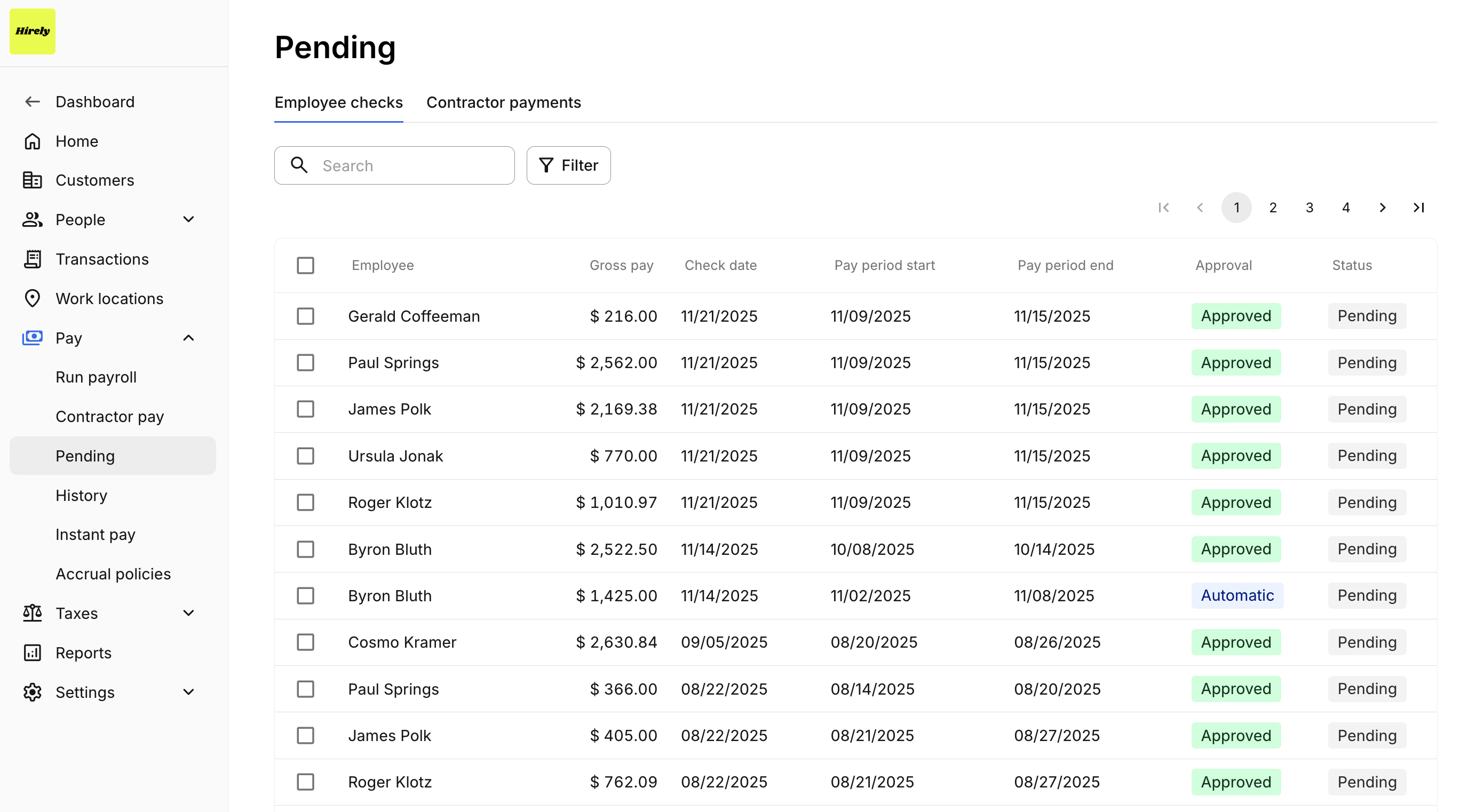
Step 5: Monitor Pending Checks
After submission, navigate to:
Pay → Pending
From here you can:
Review employee checks
Edit hours or earnings
Change disbursement methods
Delete checks
View payroll totals
Once processing begins, checks move to History.
Step 6: Review Processed Payroll
After payroll is processed, view completed payrolls under:
Pay → History
From History you can review:
Company debit
Gross pay
Net pay
Employee taxes
Employer taxes
Individual employee checks
Common Payroll Alerts
During payroll review, you may encounter alerts such as:
Minimum Wage Alerts
Warns when an employee’s pay falls below the minimum wage for their work location.
Learn more → Minimum Wage Alerts
Overtime Recommendations
Automatically recommends overtime calculations based on the employee’s workweek.
Learn more → Overtime Recommendation
Pending Check Errors
Checks that require attention before payroll can be processed.
Learn more → Pending Checks
Next Step
Congratulations! You’ve successfully run payroll.
Next, learn how to:
View Payroll History
Download Reports
Understand Payment Timelines
Overview
This article will outline how to use Payroll Run to pay Employees with app.zeal.com. Learn how to set up regular payroll for your company, run regular and off-cycle payroll, and manage deductions for your Employees. Only users with company admin member permissions will be able to access and run payroll. Please note that Payroll Run is only for paying your hourly Employees. Contractors can not be added to a payroll run. To pay Contractors, navigate to the Pay Contractors tab in your sidebar navigation.
How to set up regular payroll
A regular payroll run is based on the regular pay schedule and the first payroll check date set at the company level. To use this feature, you will first set up a regular payroll run in the Company Dashboard. Employees can be added or removed either during the setup process or by editing the payroll run at any time. Adding employees to your regular payroll run will change the employees’ pay frequency value to match that of your company’s regular pay schedule.
Setting up your regular payroll:
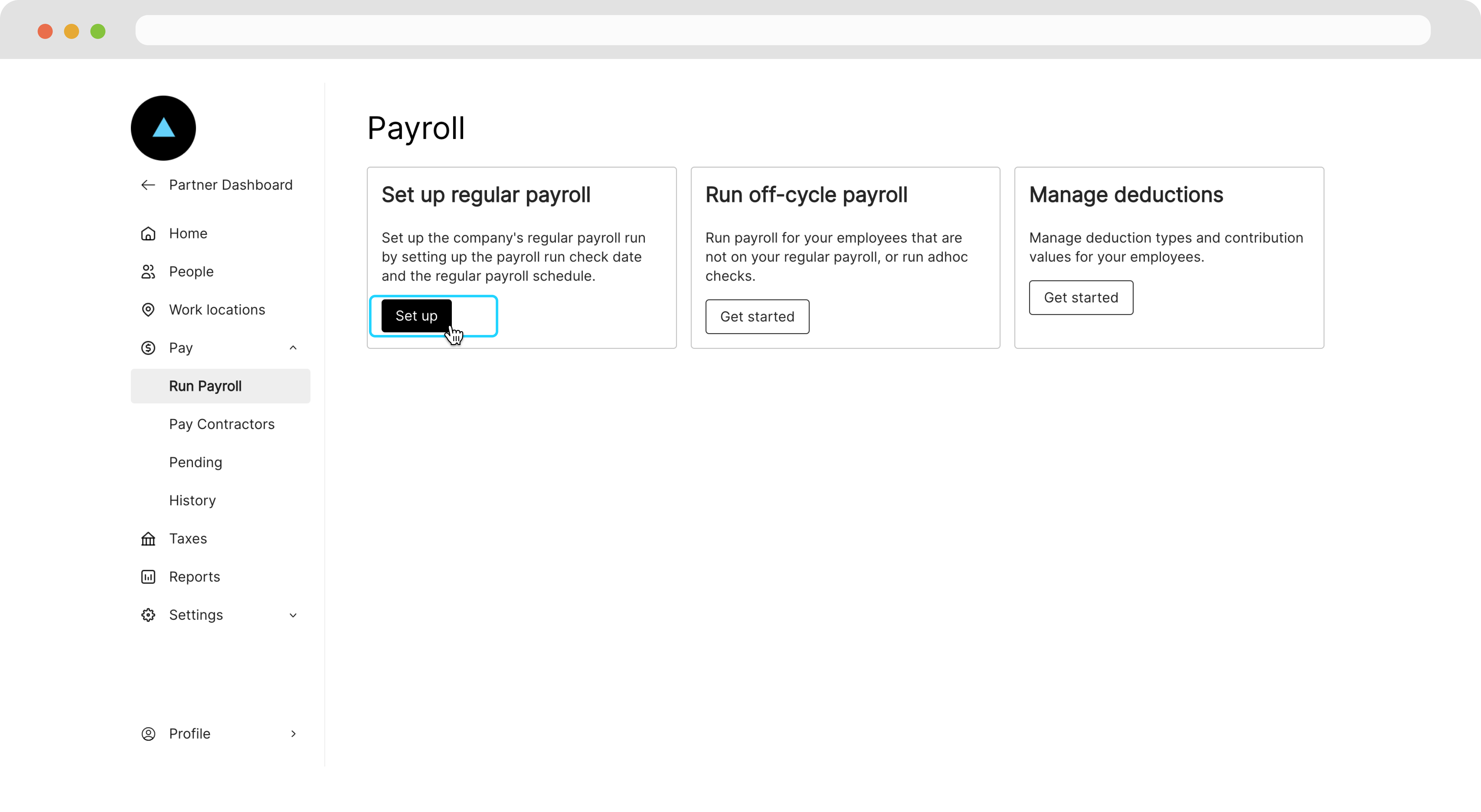
Pay tab > Run Payroll page, and click on the Set Up button.
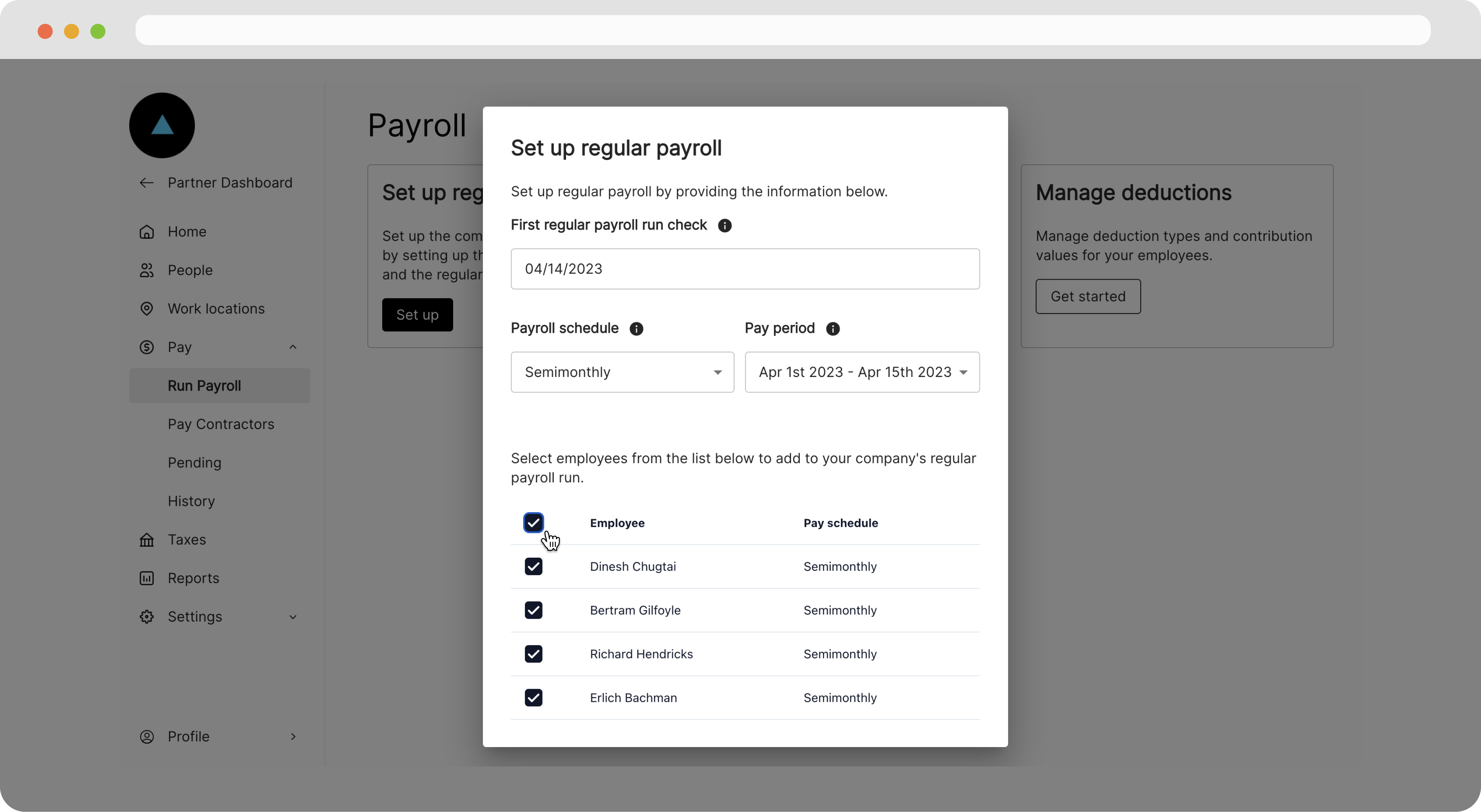
Select your company’s first regular payroll check date, reporting period for your first payroll, and your company’s regular pay frequency. Please note that you cannot adjust your company’s regular pay schedule and first regular payroll check date once you have set up regular payroll. If you need to make an adjustment to either of these items after you’ve set up regular payroll, please contact Zeal support through the Partner dashboard.
How to run a regular payroll
Once regular payroll has been set up, with the company’s regular pay schedule and first regular payroll check date, a regular payroll run can be created.
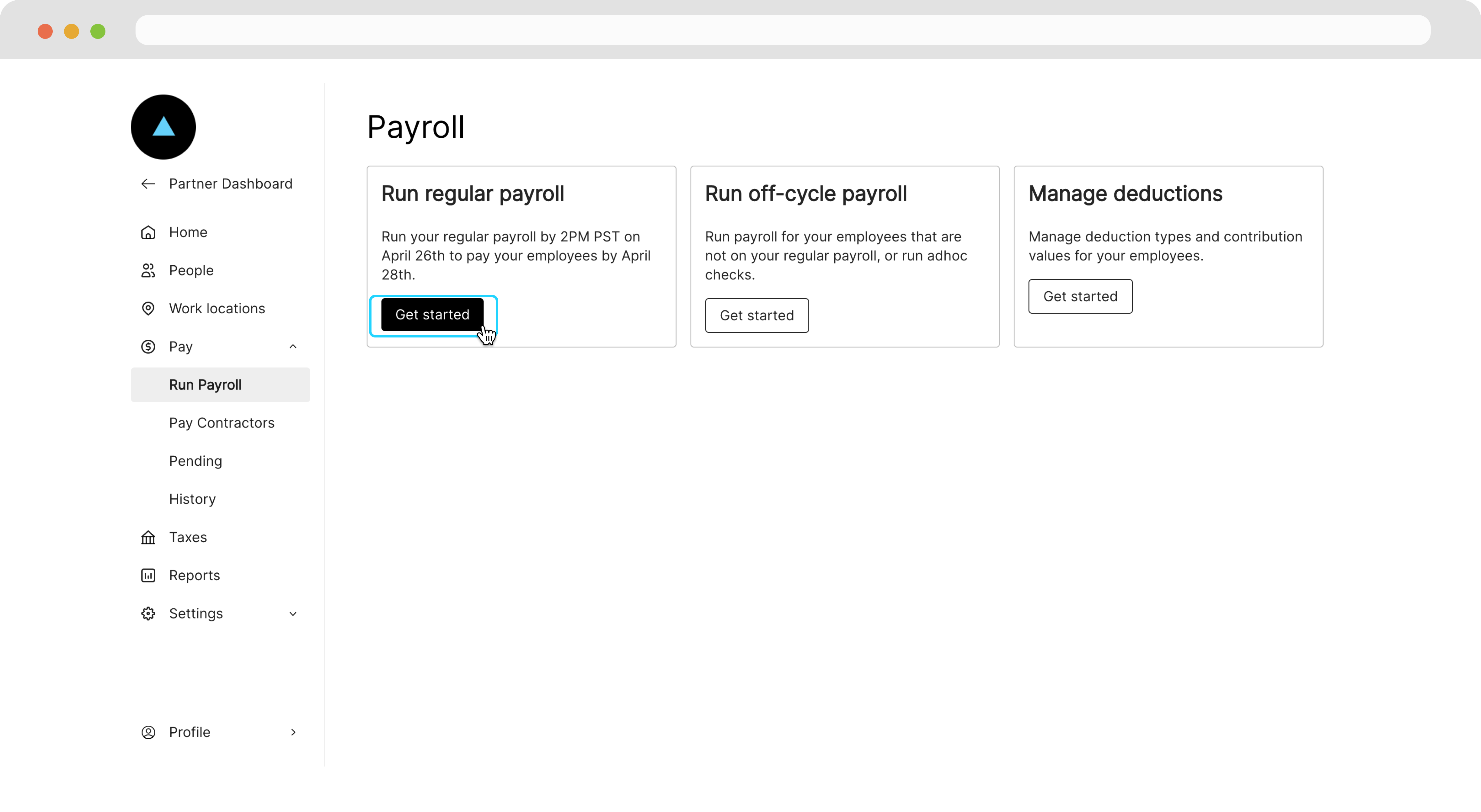
Navigate to Pay tab, then the Run Payroll page, and click the Get started button in the Run regular payroll box to run regular payroll.
Your screen will populate with all employees that you’ve identified as regular payroll employees along with their wage, hour, and deductions. From here, you can add additional employees to this run as well as add other types of earnings (such as PTO or bonuses), skip regular payroll for an employee, and adjust hour and wage data.
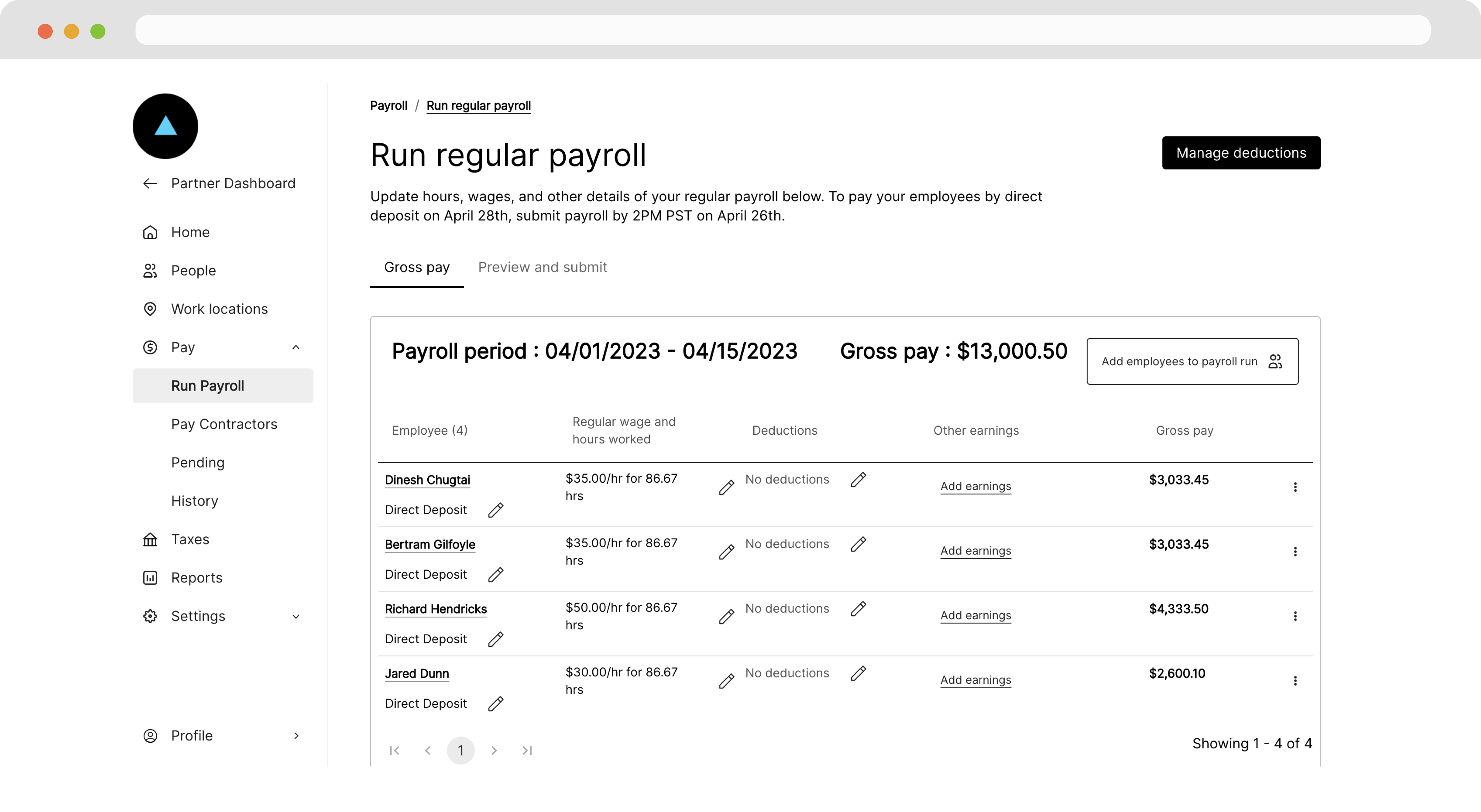
Click on the Continue button to view a summary of your drafted regular payroll run.
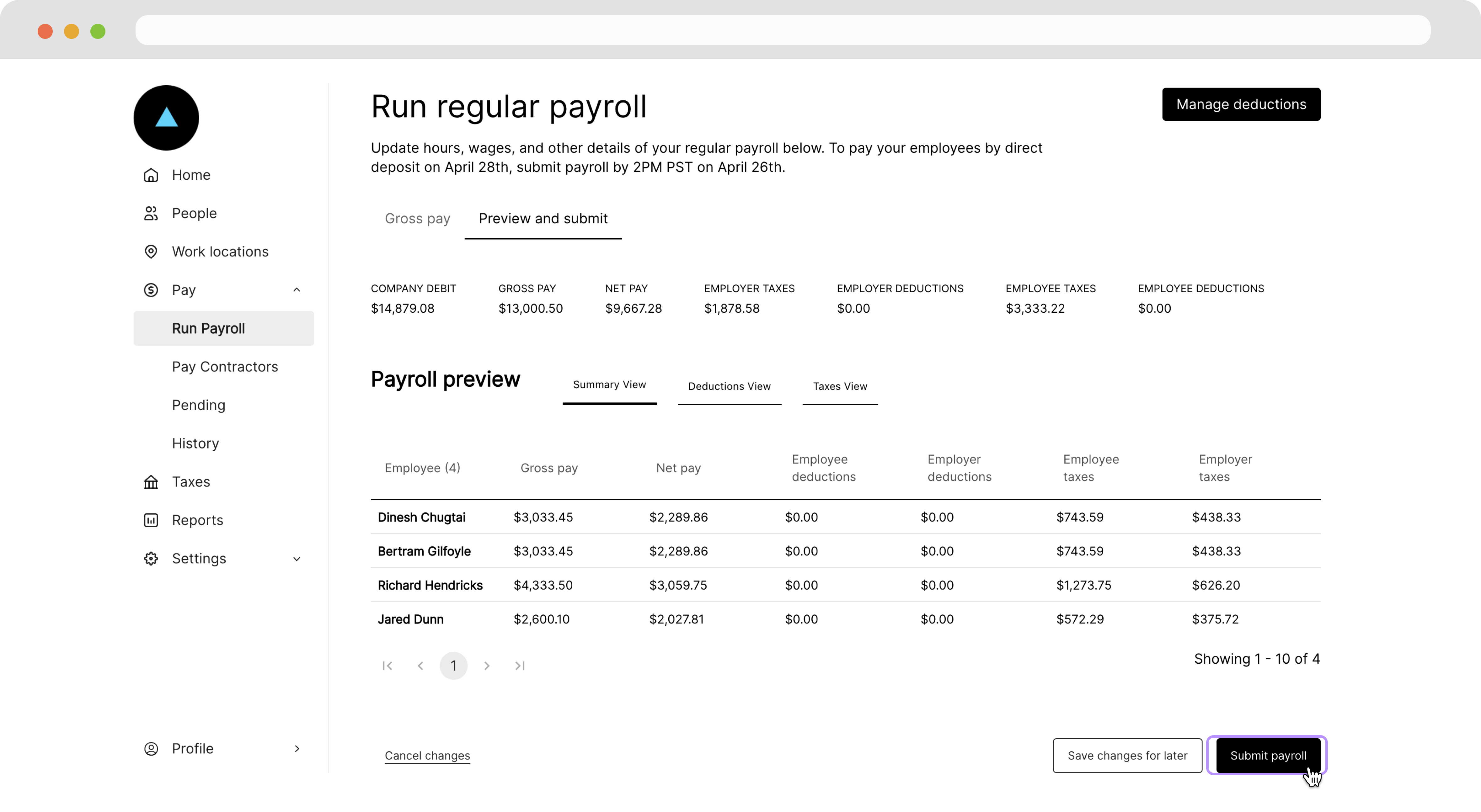
Click on the Submit payroll button to complete creating your payroll.
Zeal will process the payroll, ensuring appropriate taxes are remitted and employees are paid on the designated pay date. You can track the status of each of the employee checks in your payroll run by navigating to the Pending page under Pay in your sidebar.
Note: we do not support automatic regular payroll at this time.
Note: In order to pay your employees be sure to submit payroll before 2 p.m. PT two business days prior to the intended check date (for instance, a Friday pay date must be submitted by 2 p.m. PT the Wednesday prior).
How to run an off-cycle payroll
Off-cycle payroll can be run at any time for any of your employees. You do not have to have set up regular payroll in order to run an off-cycle payroll.
To run an off-cycle payroll, navigate to the Pay tab, then the Run Payroll page.
Click on Get started in the box titled Run off-cycle payroll.
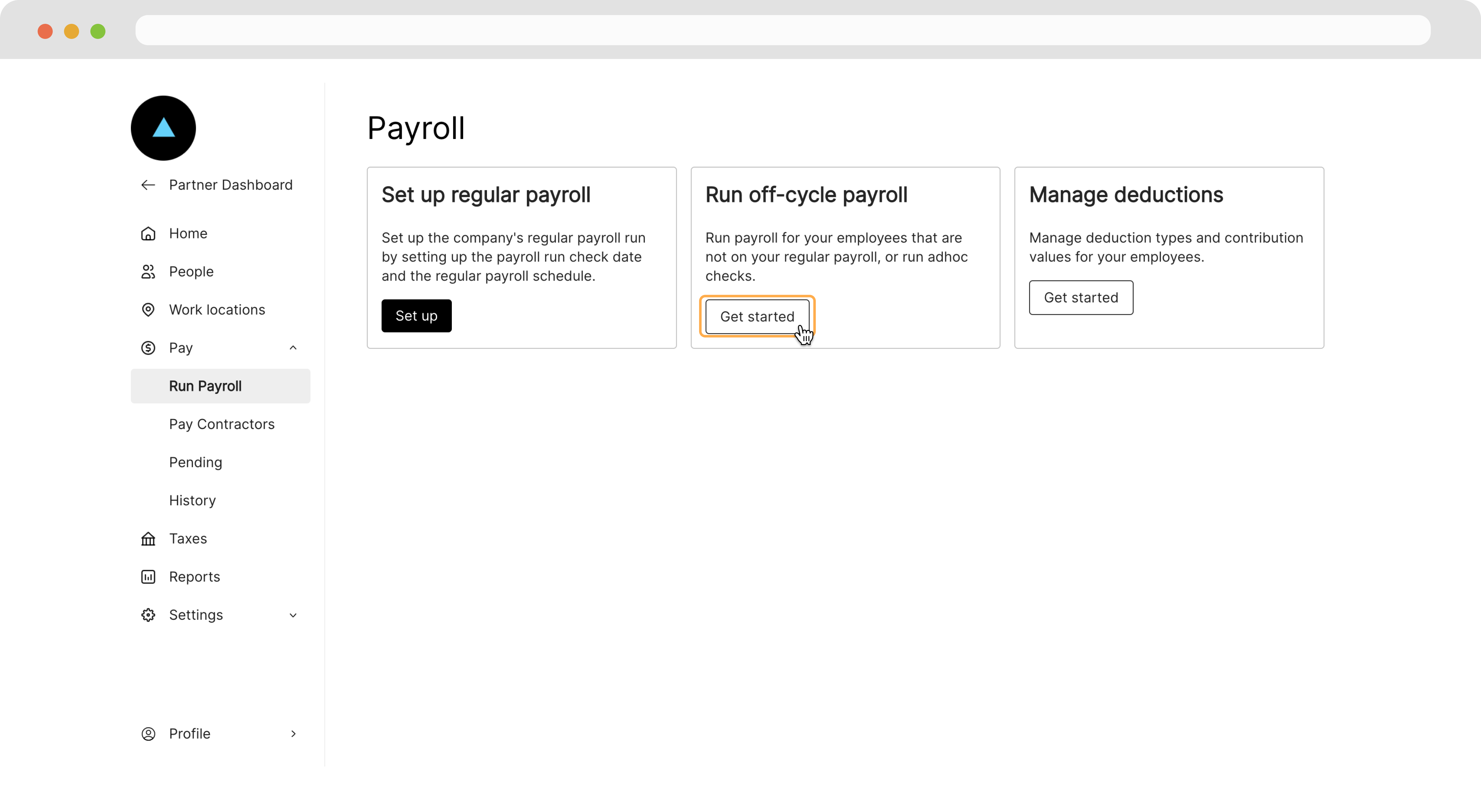
Select the pay frequency, reporting period, and check date for the off-cycle payroll run.
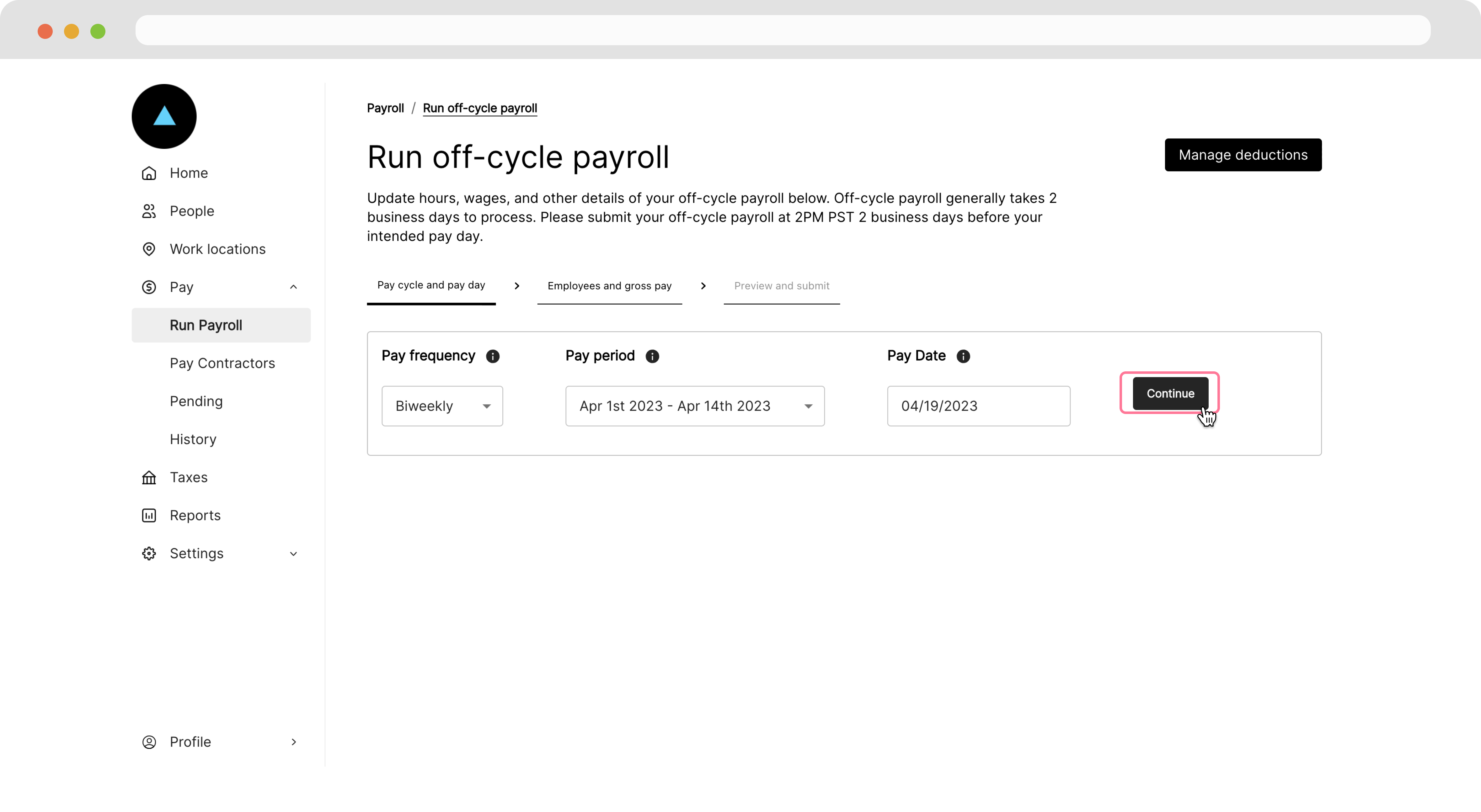
Note: The pay frequency selected for an off-cycle payroll will determine the available list of employees that can be added to that off-cycle payroll. For example, if you select a weekly pay frequency for an off-cycle payroll, only employees with weekly pay frequencies in their employee profiles will be available to add to that payroll.
You can add employees to the run by clicking on the Add Employees to payroll run button
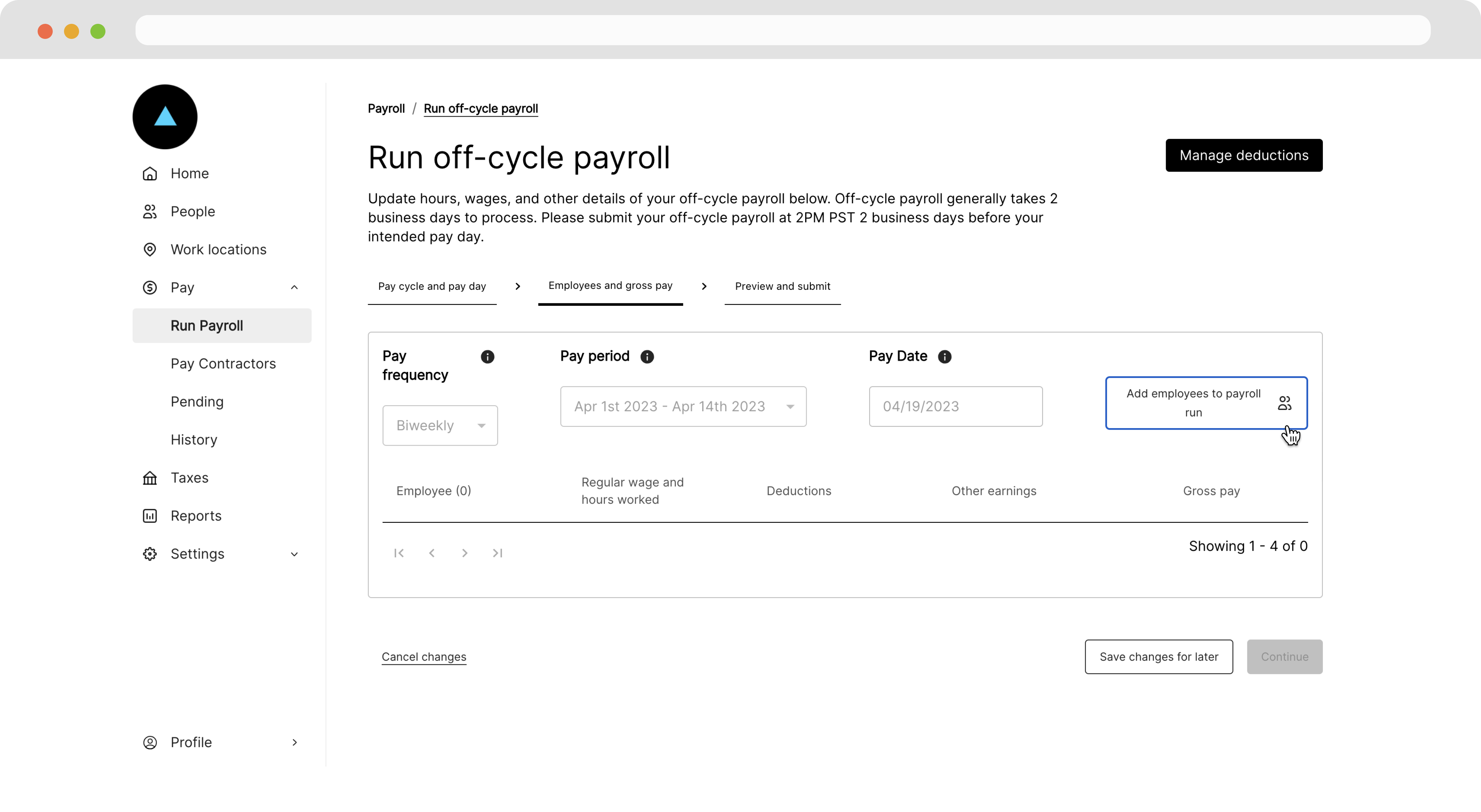
Wages, hours, and deductions will automatically populate the page and you may make adjustments necessary to the checks in this payroll.
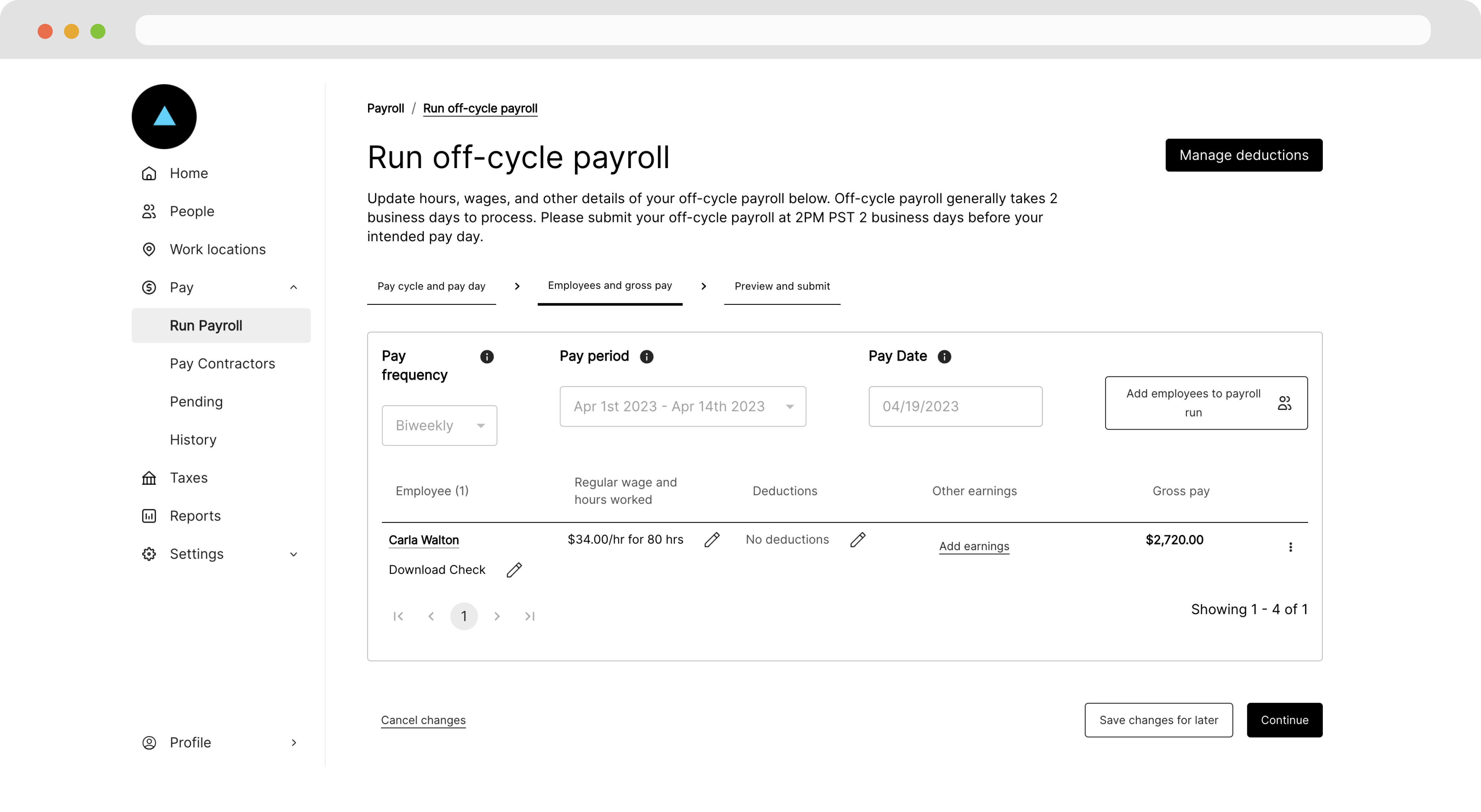
Click on the Continue button to proceed to a summary view of this payroll.
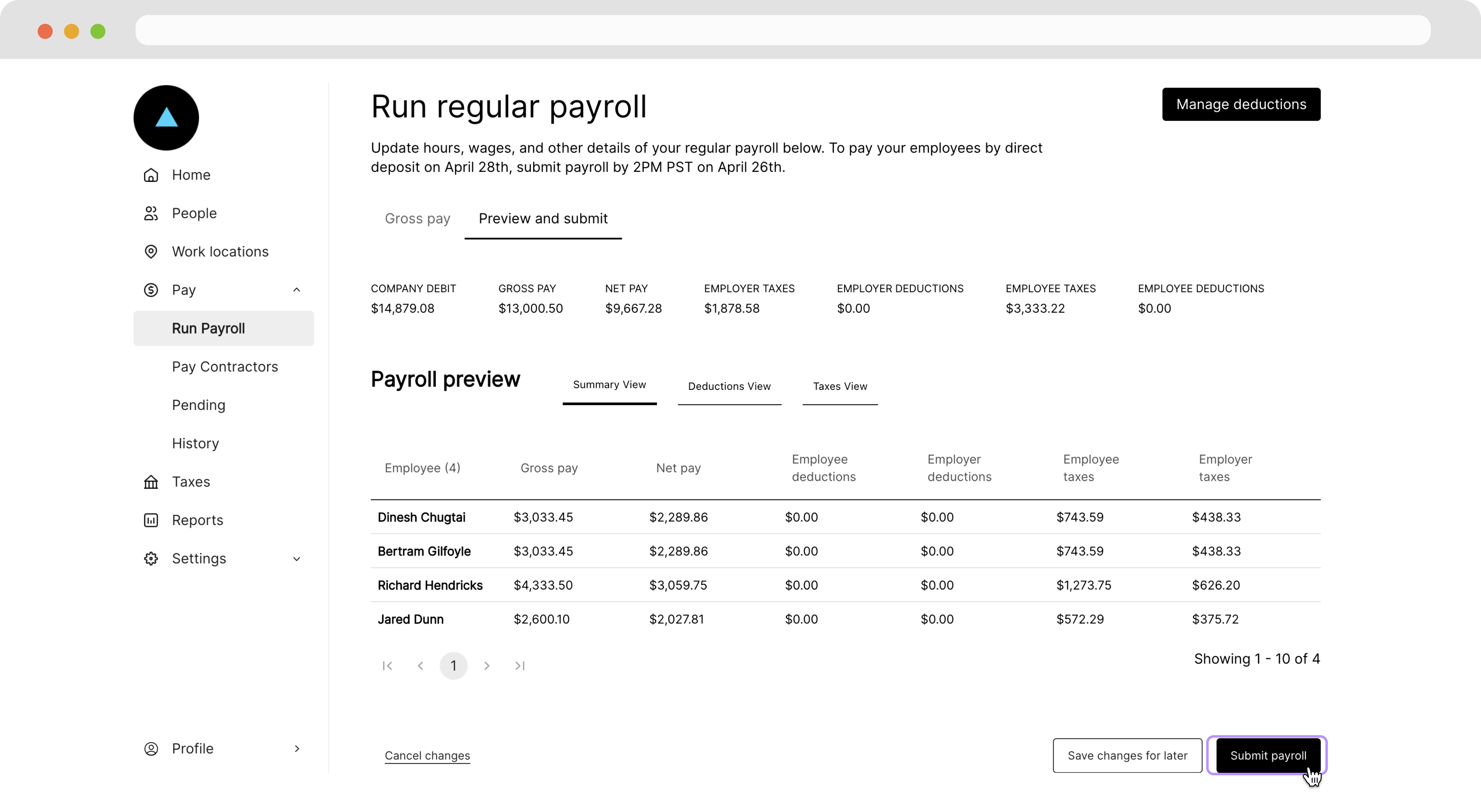
Once you’re ready to submit this off-cycle payroll, click on the Submit payroll button. You can track the status of each of the Employee checks in your payroll run by navigating to the Pending page under the Pay tab in your sidebar.
Editing a Payroll Run
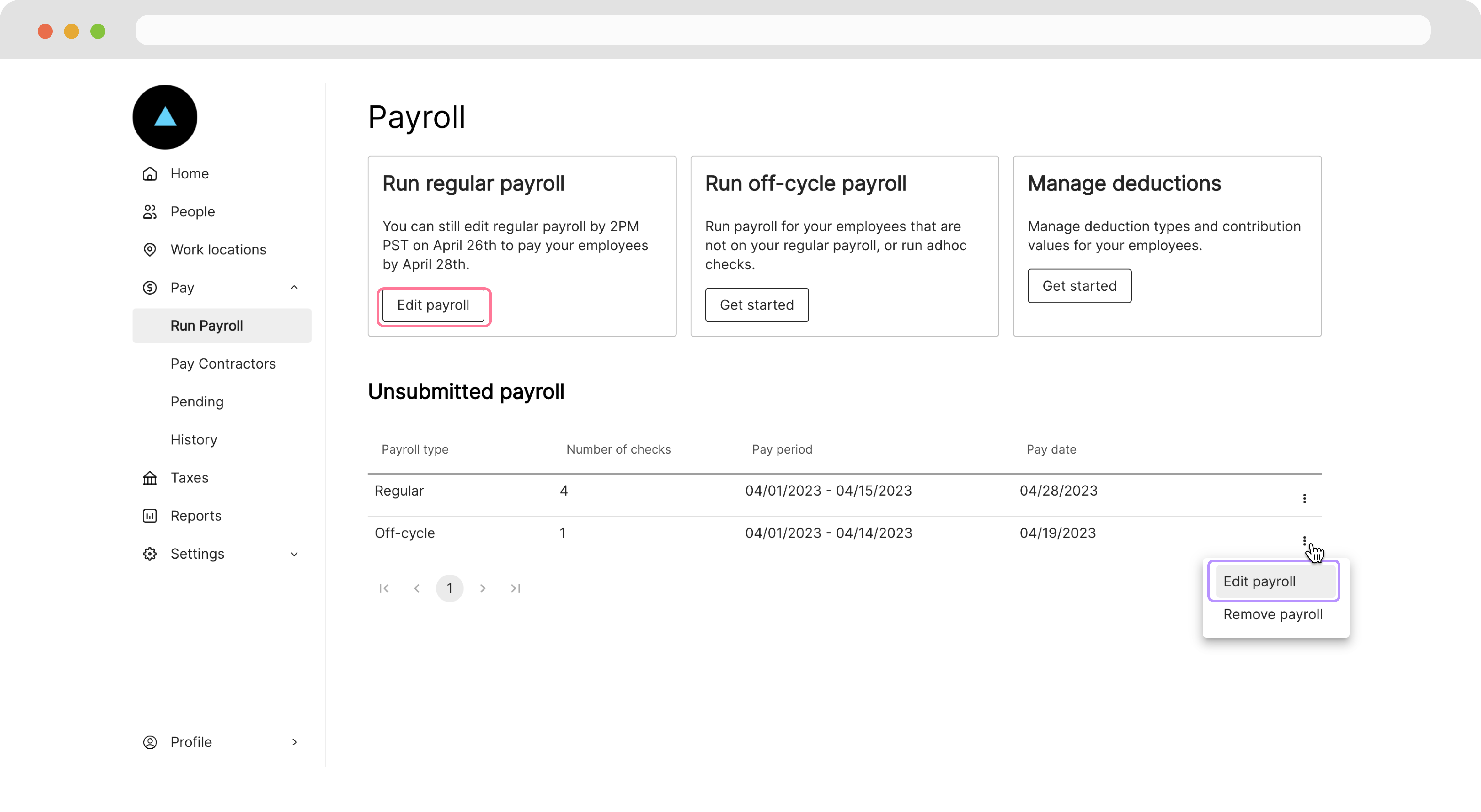
Once a run is set up, we can edit and resubmit it. In the Company Dashboard, navigate to Run Payroll and click either the Edit payroll button below the desired section, or click the three dots next to a specific payroll run and click Edit payroll.
On the next page, we can review the payroll run and make edits by clicking a pencil icon.
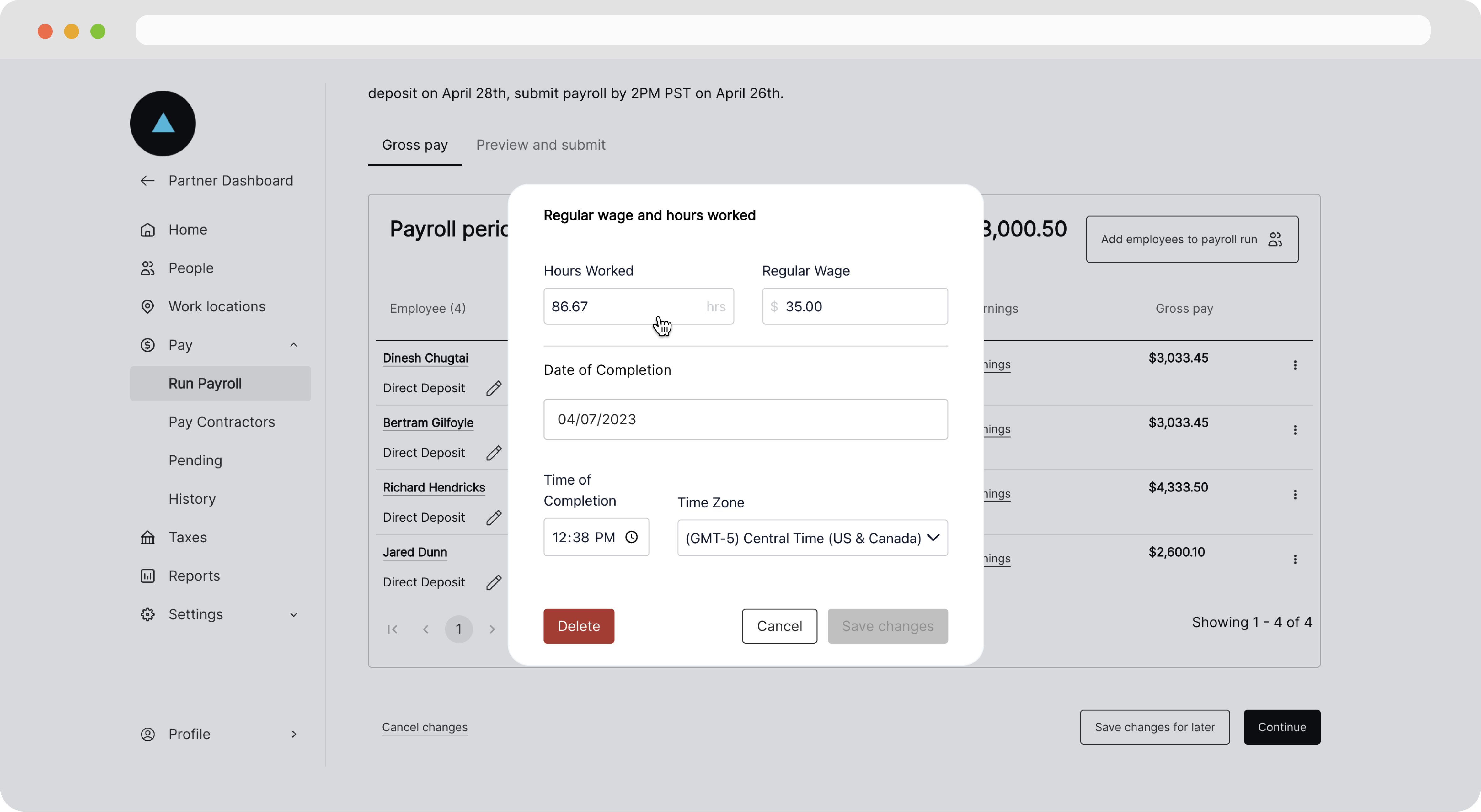
We can also remove an employee from this pay cycle by clicking three dots at the end of the row and deleting the check.
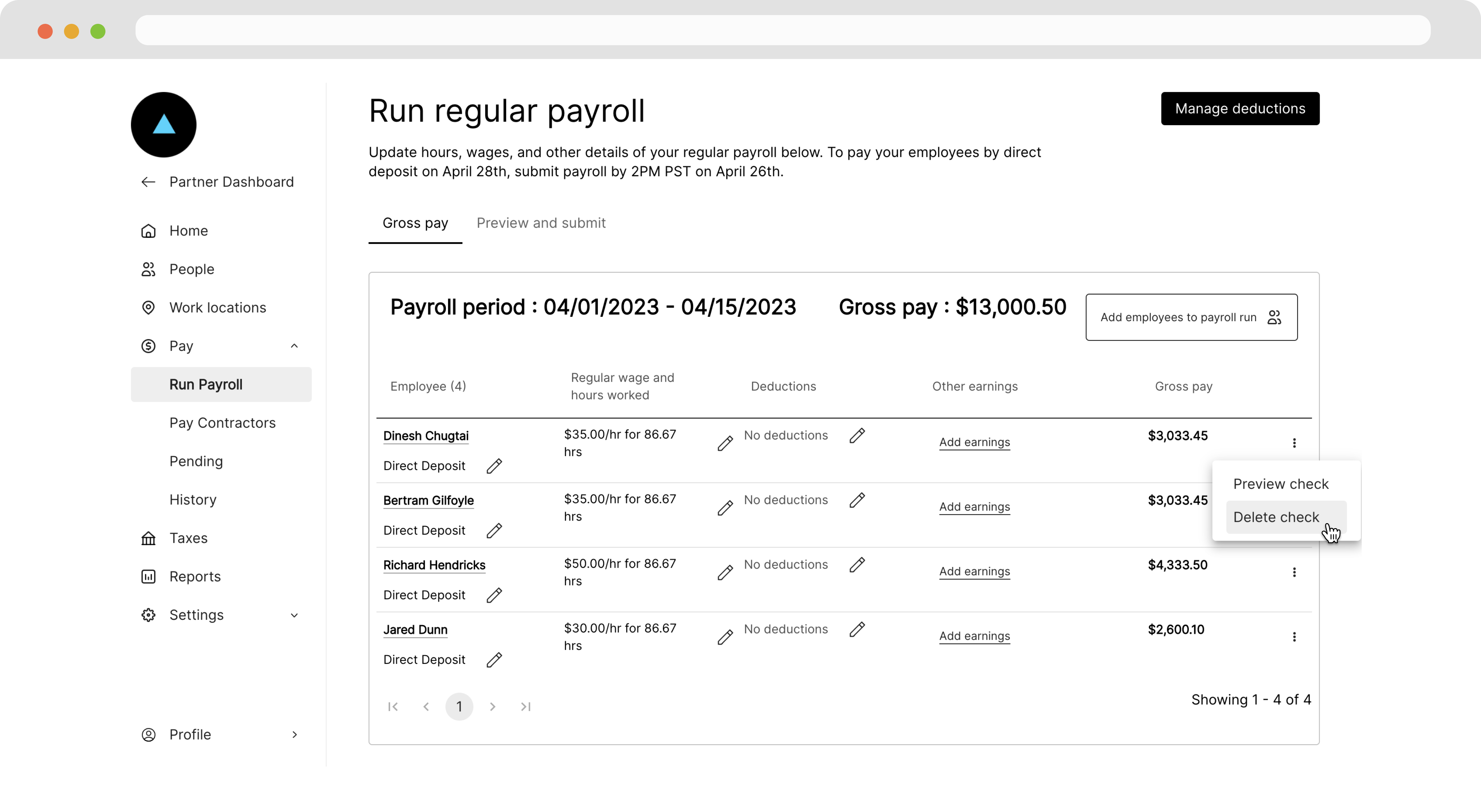
Once you’re ready to submit this payroll, click on the Submit payroll button.
Running Payroll via CSV Upload in Zeal
The Zeal Dashboard allows you to easily run payroll by uploading a CSV file containing all shift or check information for your workforce. This feature leverages a powerful AI tool and is ideal for creating multiple employee checks at once for a specific pay period and date.
Follow the steps below to upload your CSV and process an off-cycle payroll run.
1. Access the Off-Cycle Payroll Tool
Once in the selected company you want to run payroll for, navigate to:
Pay → Run Payroll → Run Off-Cycle Payroll
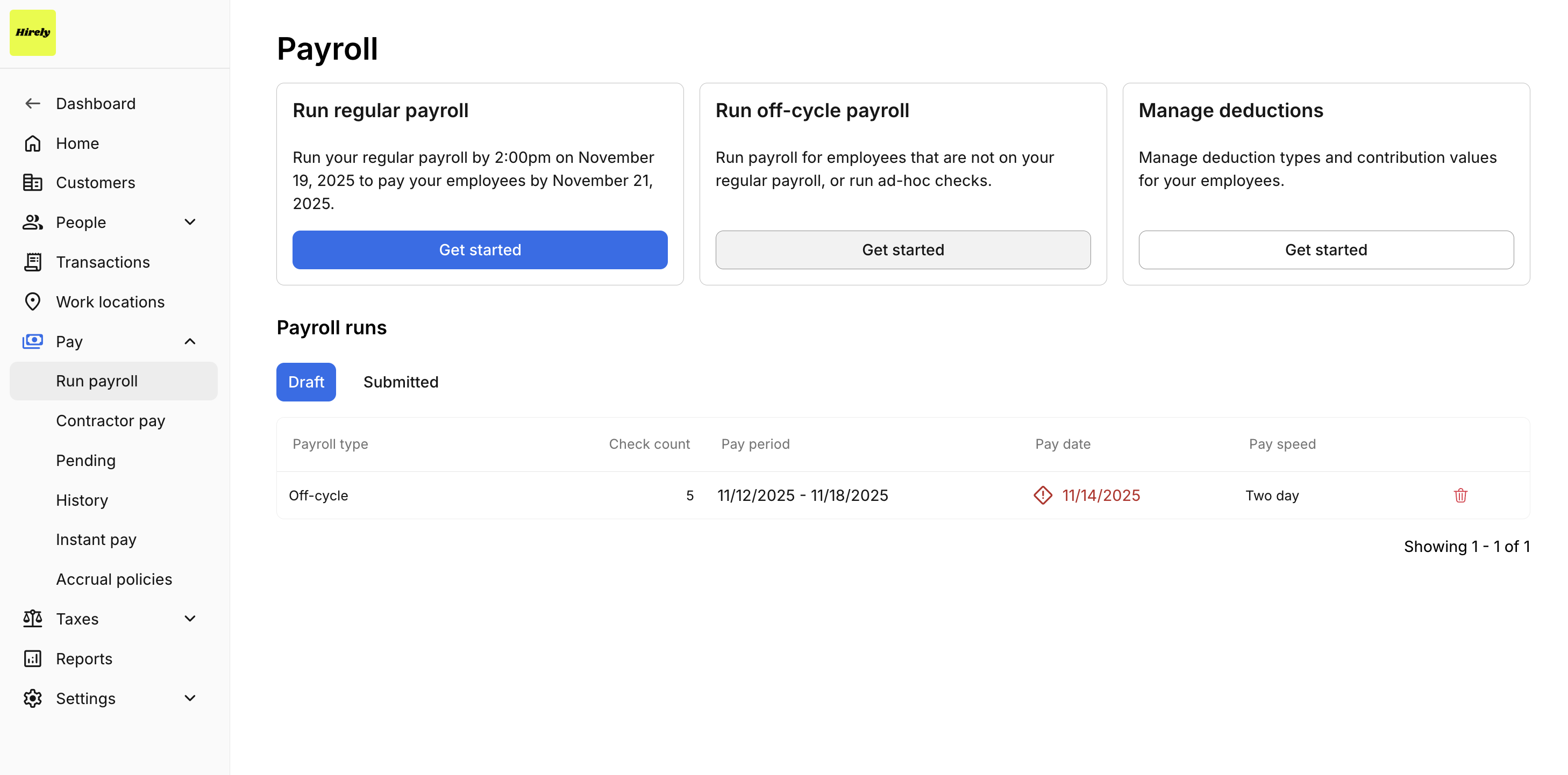
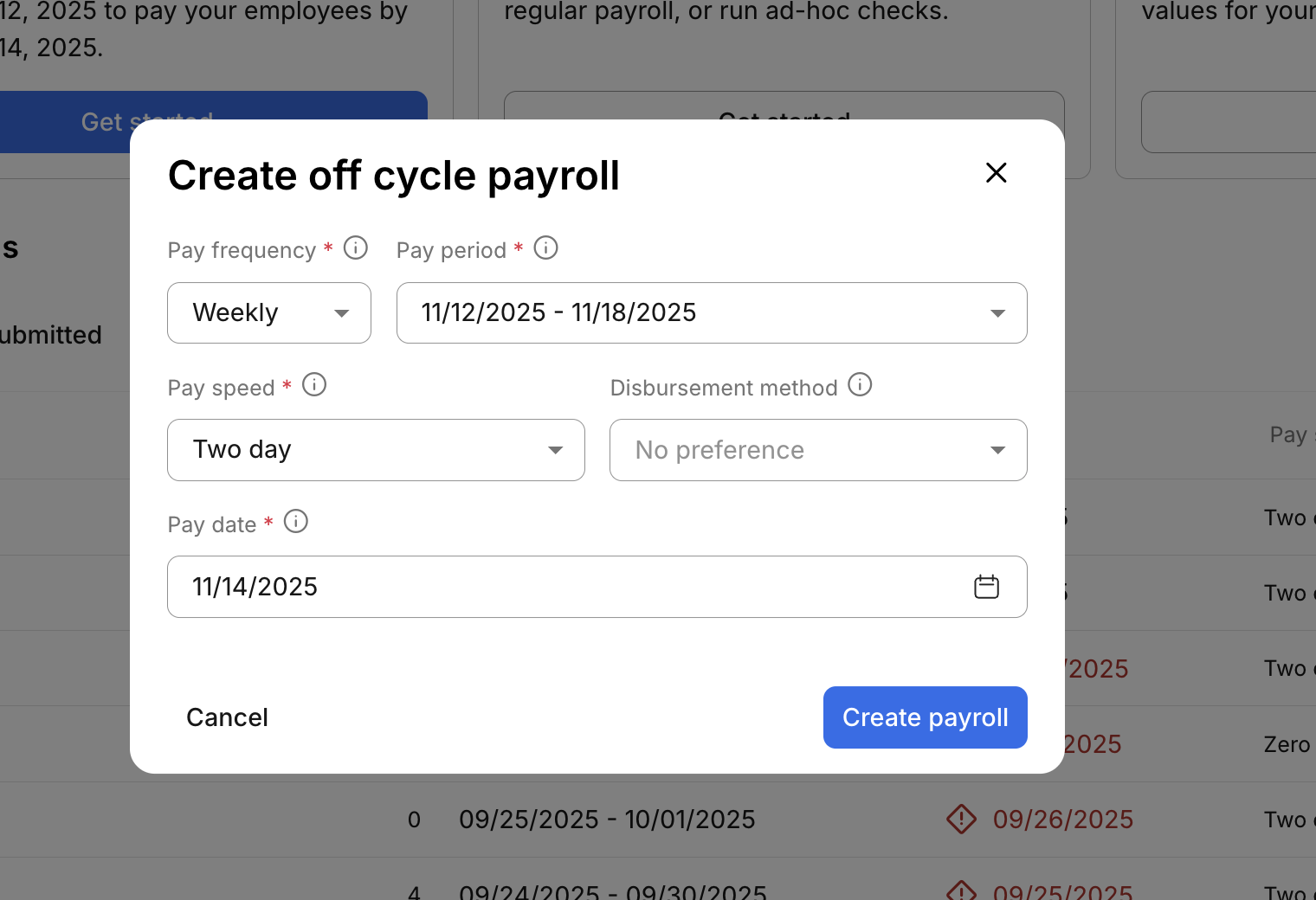
2. Setup the Off-Cycle Payroll
In the Create Off-Cycle Payroll modal, you’ll configure key details for your off-cycle run:
Pay Frequency: Choose the pay schedule your workers fall under (e.g., weekly, biweekly).
Pay Speed: Select from the available pay speed options (these may vary based on your company’s configuration in Zeal).
Disbursement Method (optional): You can select a disbursement method, or leave it blank to use the default payment method.
Pay Date: Choose the date employees will receive their pay (e.g., Friday).
Once all fields are set, click Create Payroll.
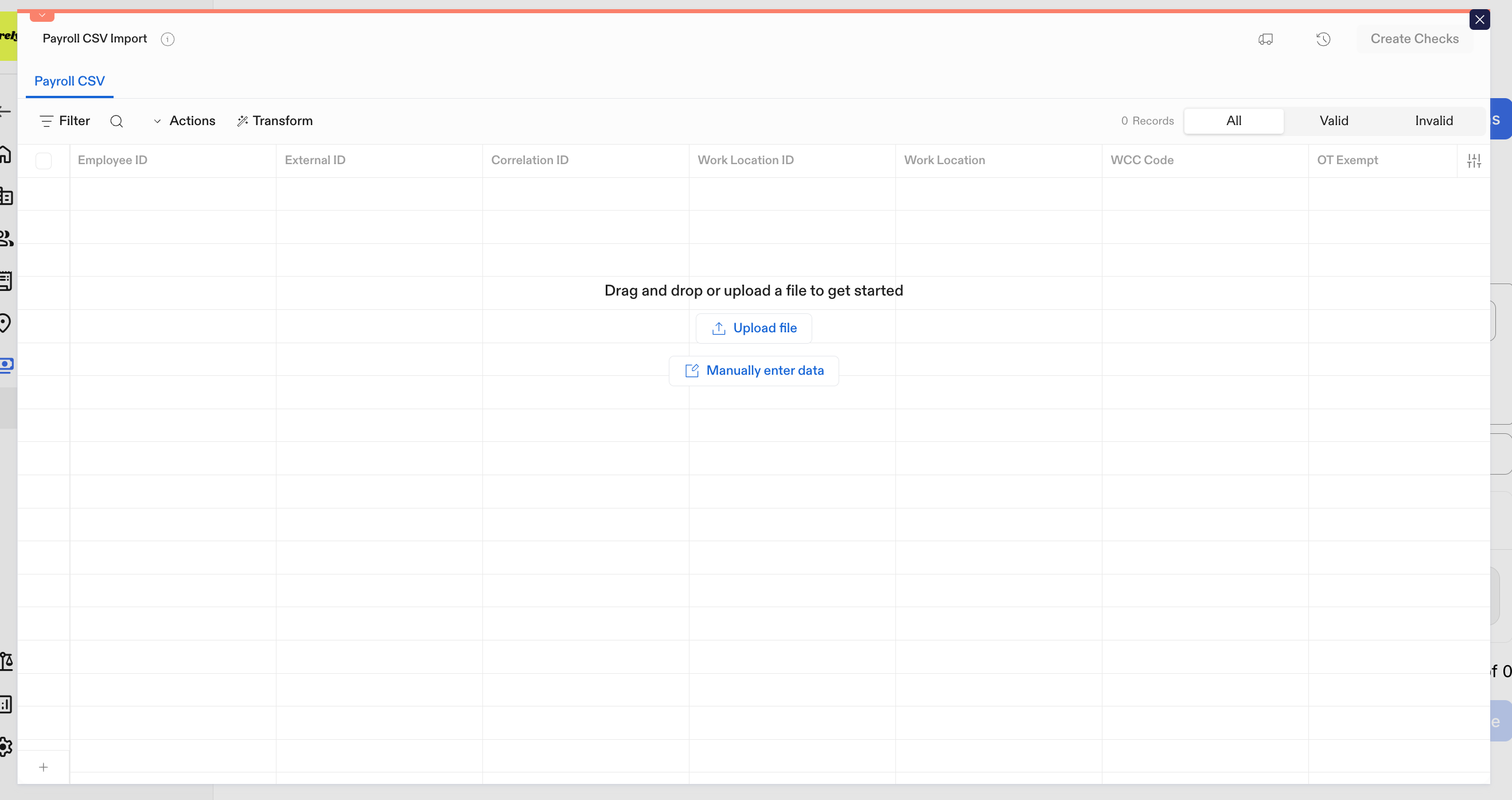
3. Upload your Payroll CSV
Select the Import Payroll CSV option.
Drag and drop your CSV file into the upload area, or select a file from your folders.
Once uploaded, Zeal’s AI mapping tool will automatically identify and map the fields from your CSV into Zeal-appropriate fields for payroll processing.
Review and adjust the mappings if needed.
Note that for checks you can key off of either:
The Employee ID created in Zeal for the Employee
An External ID that you provide, that is stored onto the Employee record in Zeal
4. Review and Map CSV Fields
After uploading your file, please review the data mappings:
Pay Items: Confirm each pay item (e.g., regular hours, bonuses, reimbursements) is mapped correctly.
Hours and Wages: Check that all hours and wage amounts are accurate.
Custom Shift Names: You can add custom names to individual shift items for clarity.
For Accruals, if correct time off numbers and an accrual policy code has been added to deduct from an Employee's balance.
If including the OT Flag Recommendation ensure it is set correctly, e.g. if you would like Zeal to handle the OT calculation for you (optional).
Once mappings are correct, click Continue.
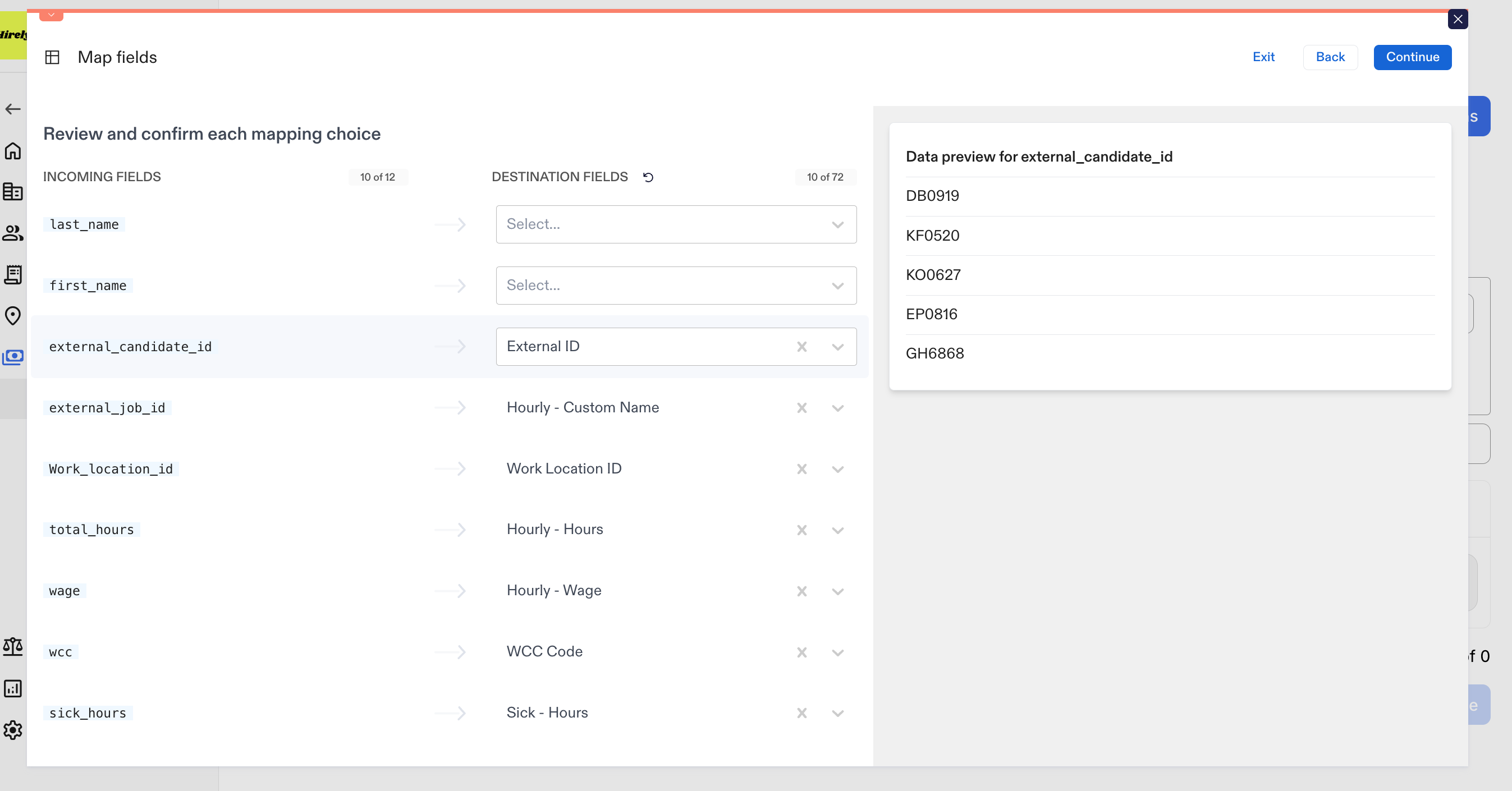
5. Review and Edit Checks
You’ll now see a preview of the uploaded data:
Review all rows in the spreadsheet view.
Edit any fields directly within the table if necessary.
Scroll horizontally to view all available columns for adjustments or transformations.
When everything looks accurate, click Create Checks. This will creates checks in the system for your payroll.
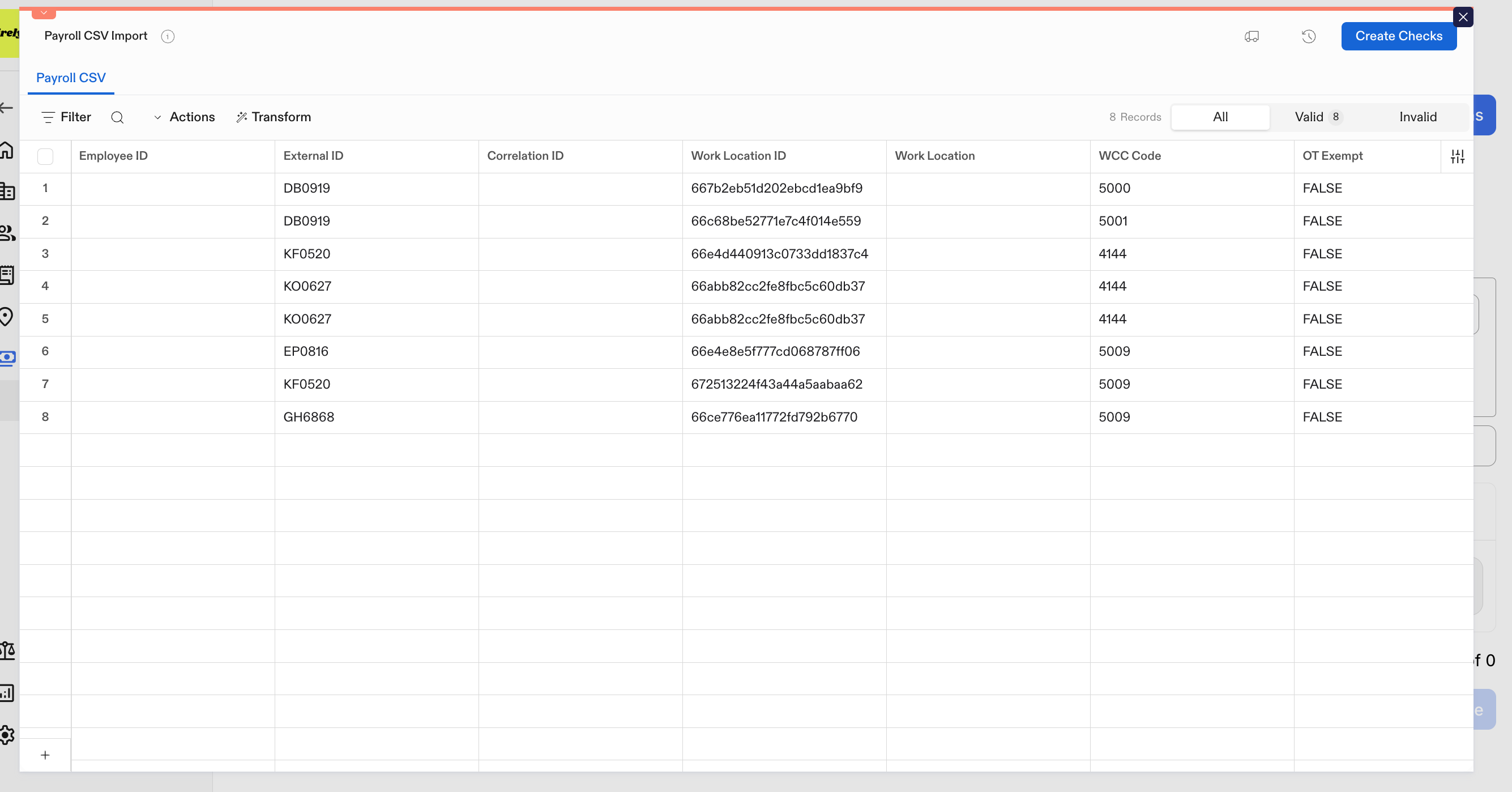
6. Review the Off-Cycle Payroll
After creating checks, you can review them within your Off-Cycle Payroll view:
Adjust disbursement methods if needed.
Modify or add additional hours.
Preview net pay, taxes, and deductions for accuracy.
Click Continue to move to the next step to preview and submit.
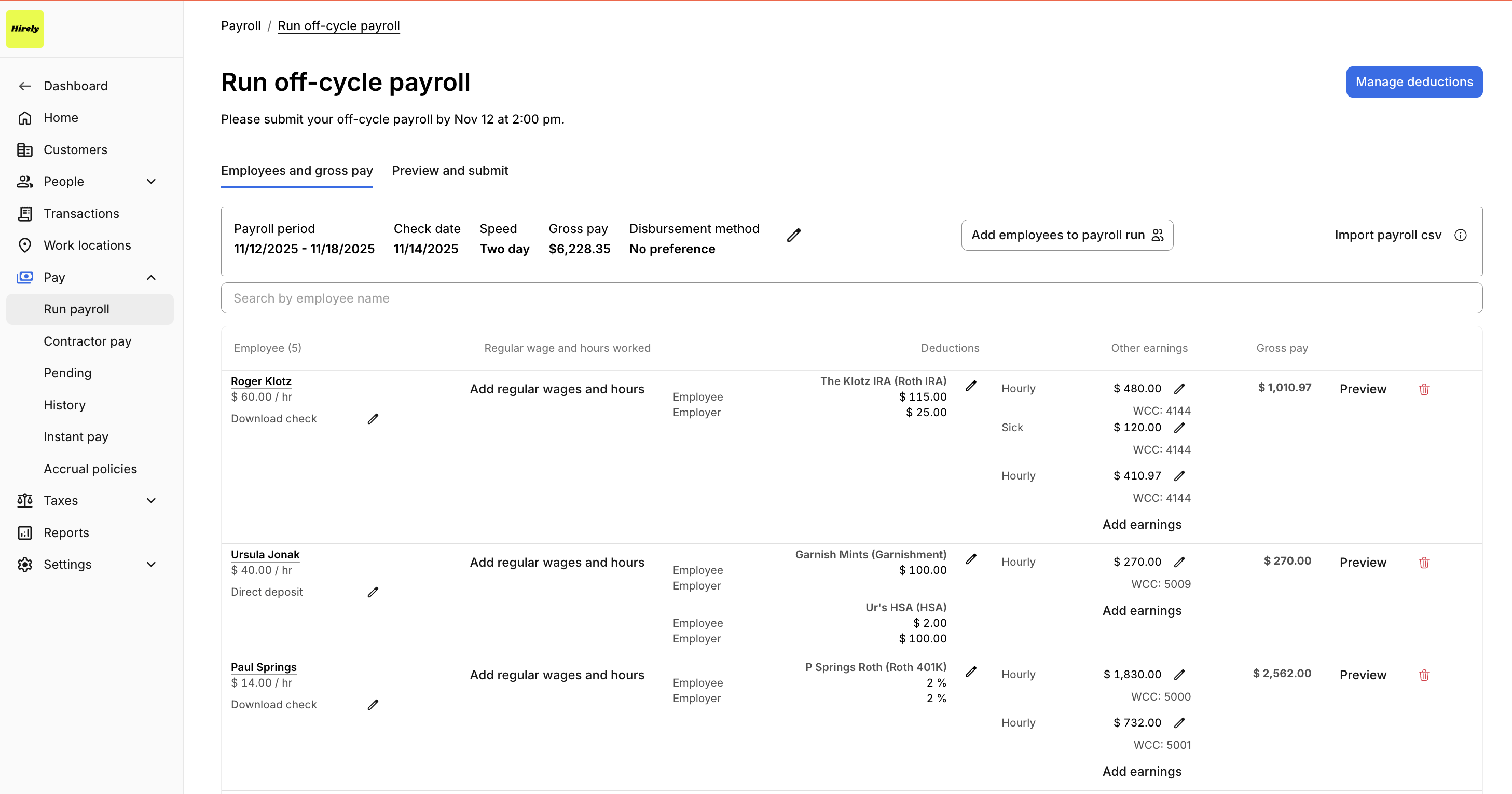
7. Preview and Submit Payroll
On the Preview and Submit page, you’ll see a full breakdown of payroll data, including:
Summary View - Summaries of totals per check.
Deductions View – See all employee and employer deductions.
Taxes View – Review tax withholdings and contributions.
Accruals View – Verify any accrued benefits or balances.
Company Totals - Company Debit, Total Gross Pay, Total Employer Taxes, etc.
Once you’ve validated all the data, click Approve and Submit Payroll.
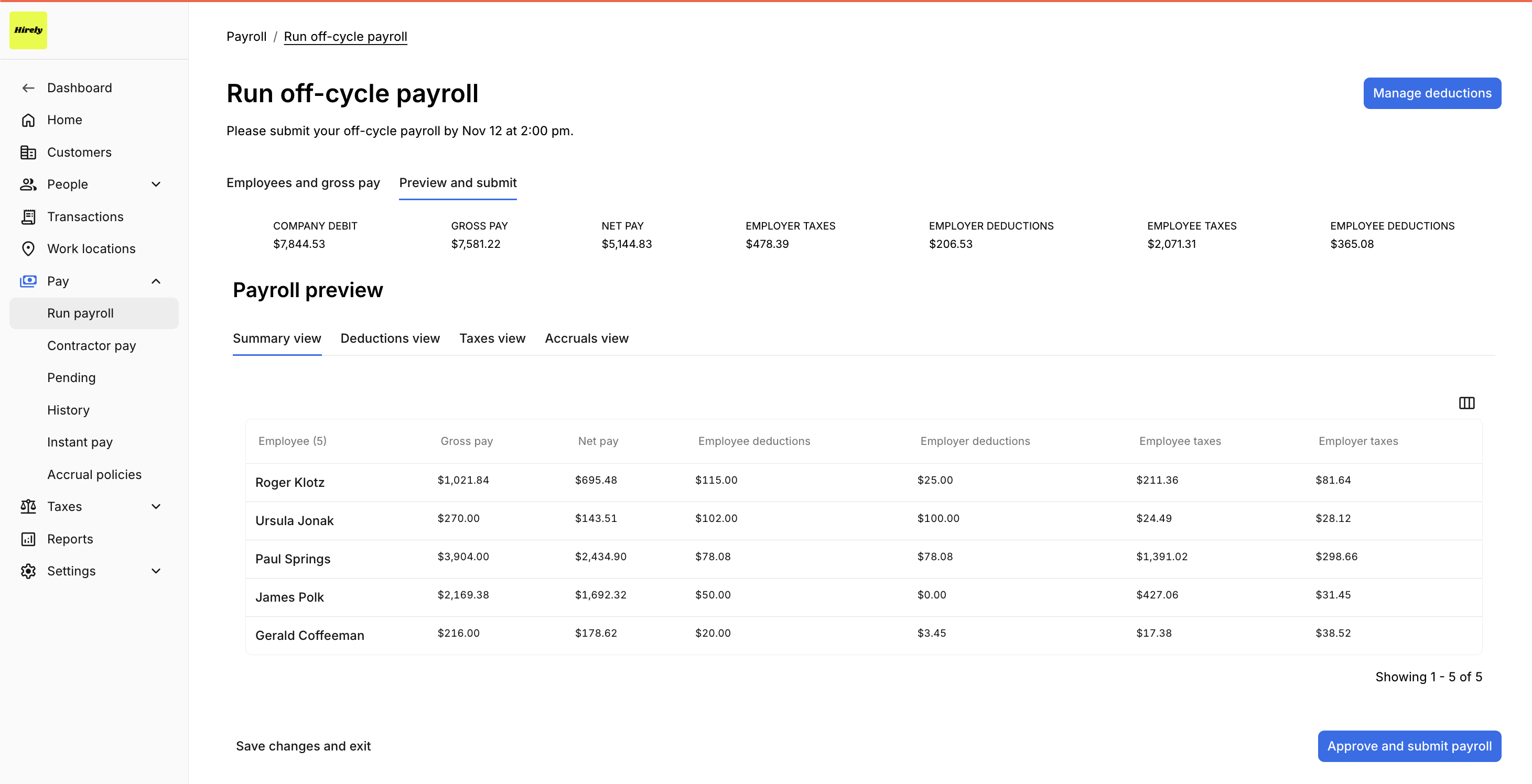
8. View Submitted Payroll
After submitting the Payroll Run, the checks will be picked up and processed by Zeal at their designated cutoff time with the speed and checkdate combination.
While the checks are still in a Pending status, they can viewed the checks under the Pay -> Pending tab, where they can be reviewed and edited as needed until Processed.
Demo Example
For a quick video walkthrough you can review this video.
Summary
The CSV Upload Payroll Tool in Zeal makes it easy to manage large or custom payroll runs efficiently.
By using the off-cycle payroll workflow, you can:Quickly upload shift or check data.
Map and validate employee records automatically.
Review, edit, and submit payroll with full transparency.
Zeal is a financial technology company, not an FDIC insured depository institution. Banking services provided by Bangor Savings Bank, Member FDIC. FDIC insurance coverage protects against the failure of an FDIC insured depository institution. Pass-through FDIC insurance coverage is subject to certain conditions.
Mastercard® Debit Card is issued by Bangor Savings Bank, Member FDIC, pursuant to license by Mastercard International Incorporated. Mastercard is a registered trademark, and the circle design is a trademark of Mastercard International Incorporated. Spend anywhere Mastercard is accepted.